Table of Contents
Intro
For the better part of the year, tech media outlets have been telling us (more like screaming at us) that we need to immediately buy a glorious “AI PC”, because the Windows 10 End of Life (EOL) is near. That means no more updates for your Win 10 system. You need Windows 11 to keep receiving updates, and for that, you need a new PC.
Don’t get me wrong, I’m all for updates and security – in fact, I’ve been an infosec guy professionally for half a decade. I’m not suggesting in any shape or form that you should leave your PC without updates, that’s a horrible idea. I’m saying that Windows 11 isn’t the one and only holy grail as these outlets suggest. They don’t quite tell the whole story, are they? Take a peek:
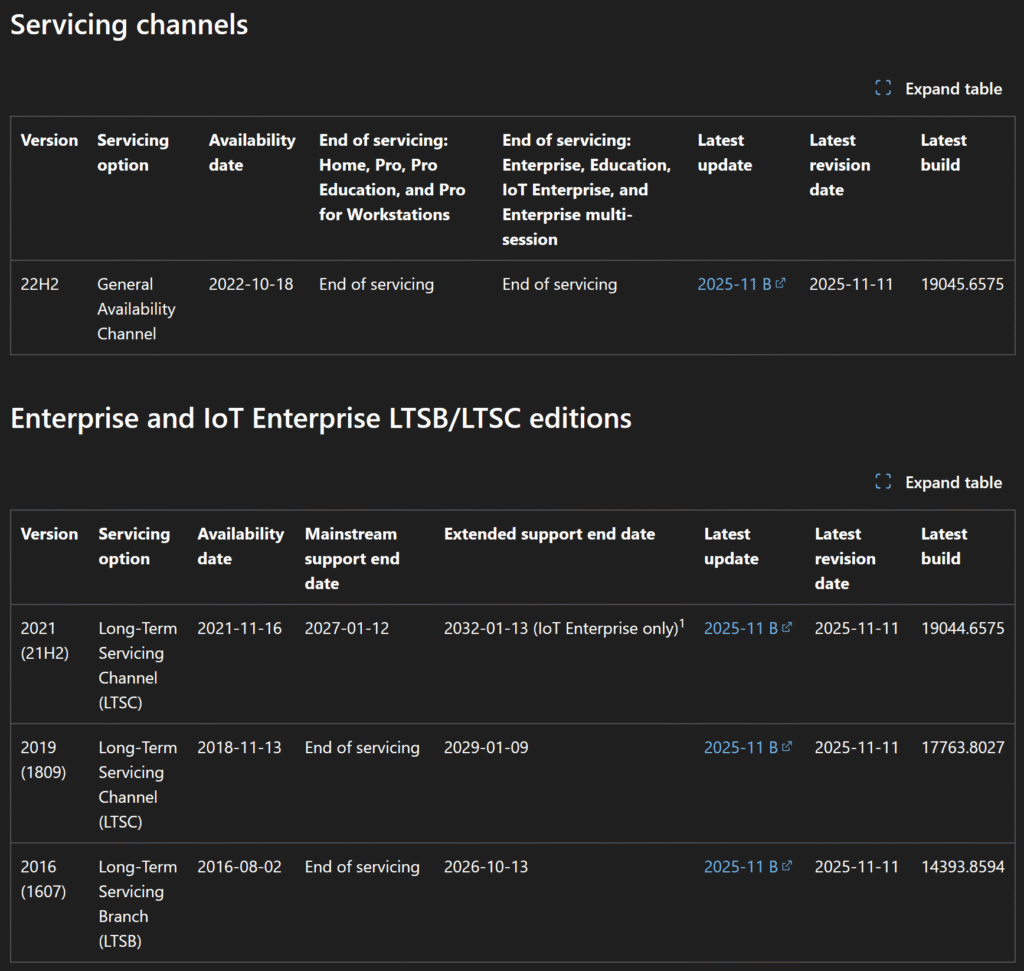
Notice that 2032 date for the IoT LTSC build? Yes, that’s not a typo, it’s actually a thing. While IoT (standing for “Internet of Things”) is aimed at so-called embedded devices, it is technically a full-fledged Windows 10, the only major difference lies in the intended audience.
Speaking of which… you can’t actually buy IoT as a private customer, right? Well, yes, that’s right, you can’t buy it in stores. Although it’s worth pointing out that even the executives at Microsoft have stated publicly that nobody ever buys Windows – you get it with your comp, and that’s it. But technically, Microsoft won’t sell you IoT in retail, they’re only releasing it for evaluation. I’m just pointing out that it exists, so it could’ve been an interesting option. I’m not saying you should actually do anything about it, I’m purely focusing on the technical feasibility aspect in a “what if” scientific research manner.
But wait, what’s even wrong with Windows 11, you might ask?
- It randomly halves your FPS
- File Explorer is so slow they try to preload it into memory
- It doesn’t help but at least now it consumes twice as much memory
- Games crash randomly
- Almost all core features are broken on 24H2
- Nevermind 24H2, 25H2 is broken, too
- It keeps breaking even their own apps, on their own OS
- It becomes an “agentic” OS whether you like it or not
- It’s so bad that it makes Gamers Nexus start doing Linux benchmarks
- It causes reboot loops
- It is “deleting” the internet
- It slows down your GPU again
- There are so many complaints that now they’re “rethinking” Windows 11
- Its recent “update” broke vital Windows 11 Start menu function
- Then MS goes on to claim it has no known issues 😂
- Then confirms Windows 11 KB5077212, KB5079420 break PC reset on 25H2 and 24H2 systems 😂😂
- And that Windows 11 KB5083769, KB5082052 wrongly forces BitLocker recovery
- Then warns Windows PCs keep restarting after KB5082063, KB5082142 update bug
- Windows 11 April update triggers “death loops” and bizarre pixelated crashes
- KB5083769, KB5082052 updates causing Remote Desktop issues
- Then they admit Windows 11 lost its way, Nadella pledges to “win back fans”
Wow, just wow. “No known issues”.
This whole debacle is very weird to me, because I’m an early adopter by nature. I’ve been using Windows 11 since day 1. Actually, prolly even sometime before that via some Insider build before release. I’ve been subjecting myself to the sluggish, breaking, lagging interface for 4 years. But enough is enough, it’s time to conclude that Windows 11 isn’t going to change for the better. I’ve been waiting patiently for things to improve, but they don’t, they’re actually getting worse.
Extended Security Updates
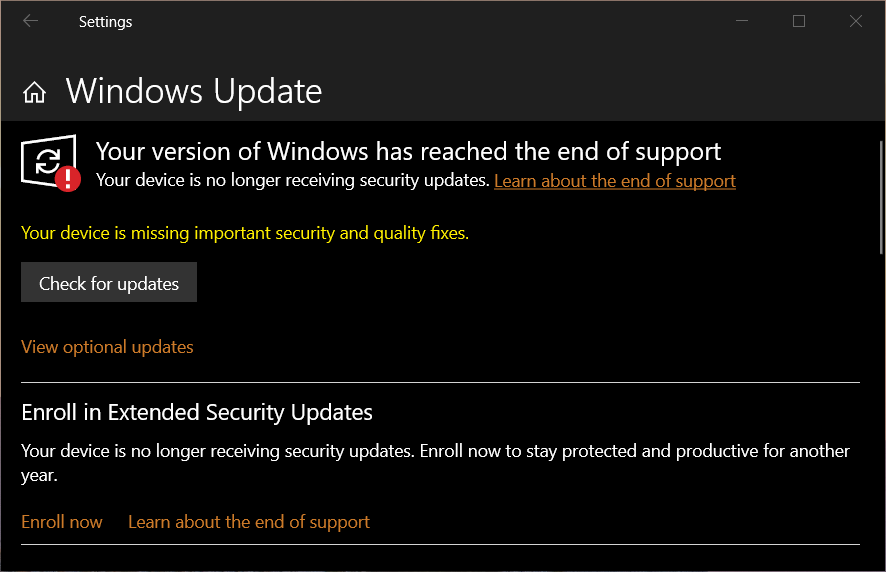
This guide wouldn’t be complete without mentioning that Microsoft does have a program in place to support consumers of the Windows 10 Home and Pro editions dubbed Extended Security Updates (ESU). It is available for $61 for the first year, with the price doubling each year. Thanks to the European Union’s Digital Markets Act and Euroconsumers in particular though, the first year is free for EU residents. The maximum length is 3 years, i.e. 2028.
Go to Settings > Update & Security > Windows Update. If your device meets the prerequisites, you’ll see a link to enroll in ESU.
This option means your PC will keep receiving updates without reinstalling, but it’s 4 years less support, too. On the other hand, some of your software might stop working anyway by 2028, so it really is up to you to consider your options carefully.
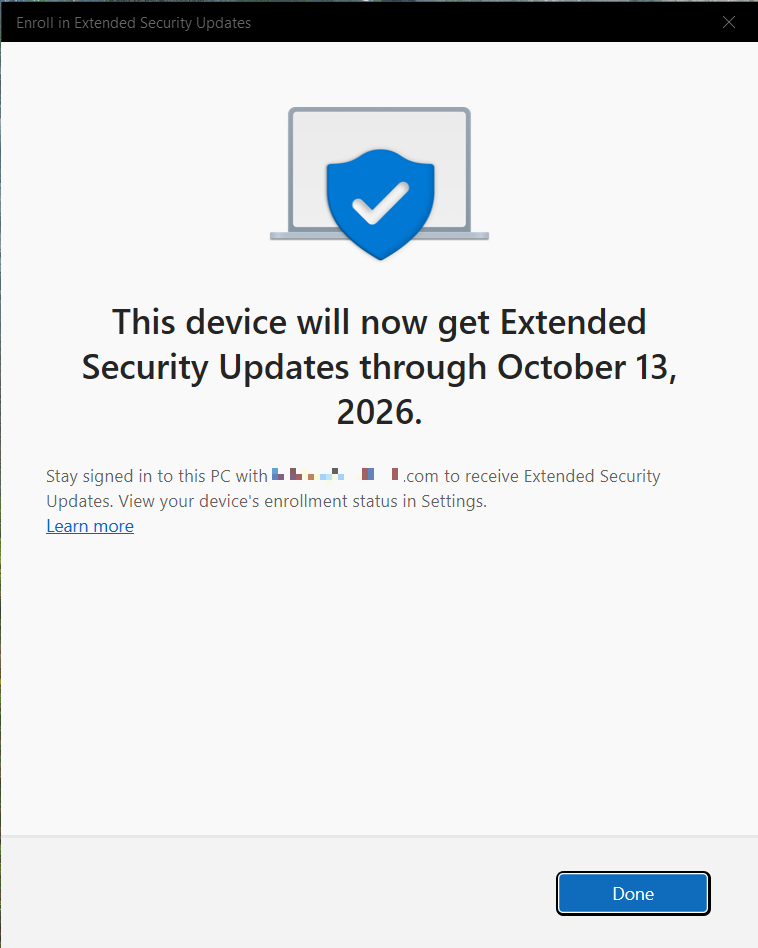
If you’re in doubt (and in the EU), just enroll into ESU, and you’ll have until 13 October, 2026 to decide how to more forward.
With ESU, everything will keep working as previously, and it only takes a couple of minutes to do. It’s definitely better than leaving your OS vulnerable. It’s a no-brainer.
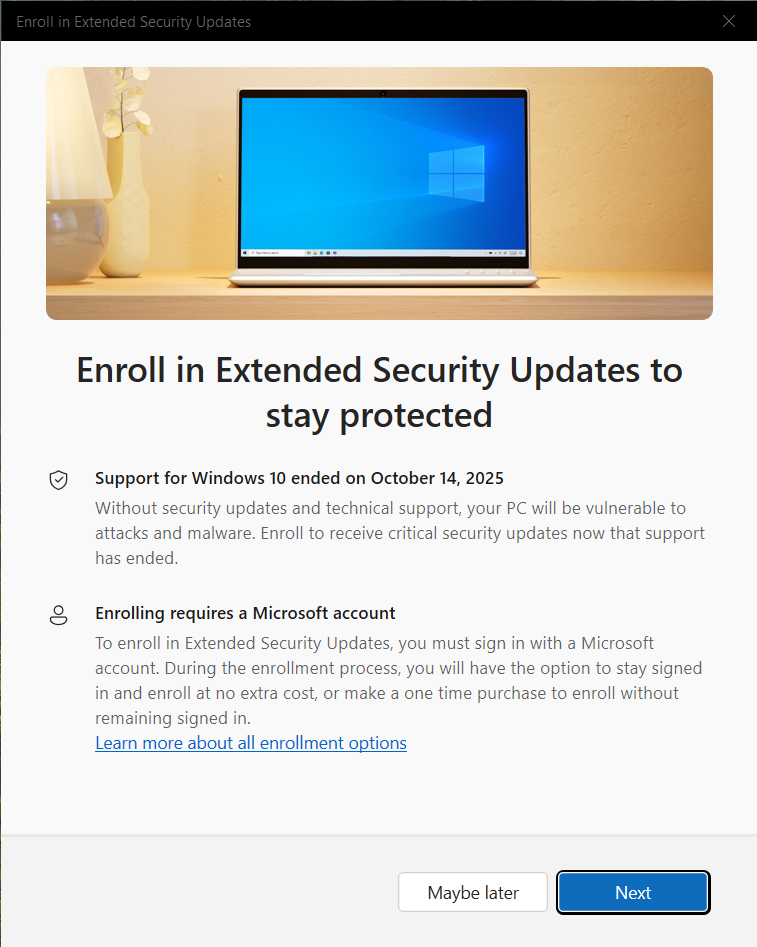
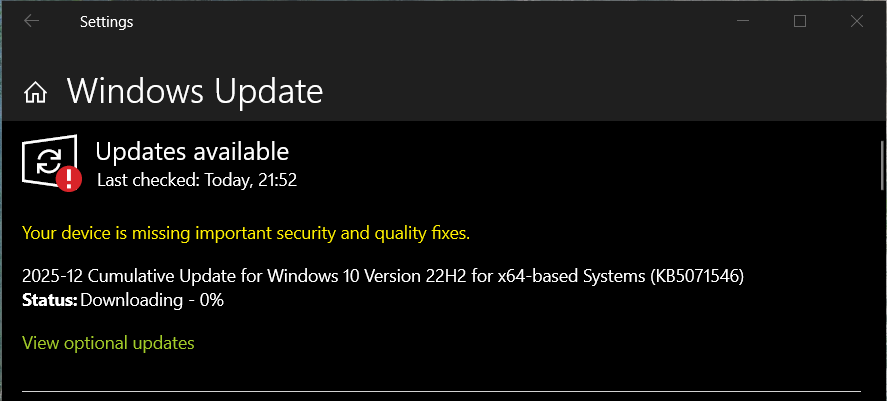
- To do it, open Settings / Update & Security / Windows Update, and click Enroll now.
- Read the info, then click Next.
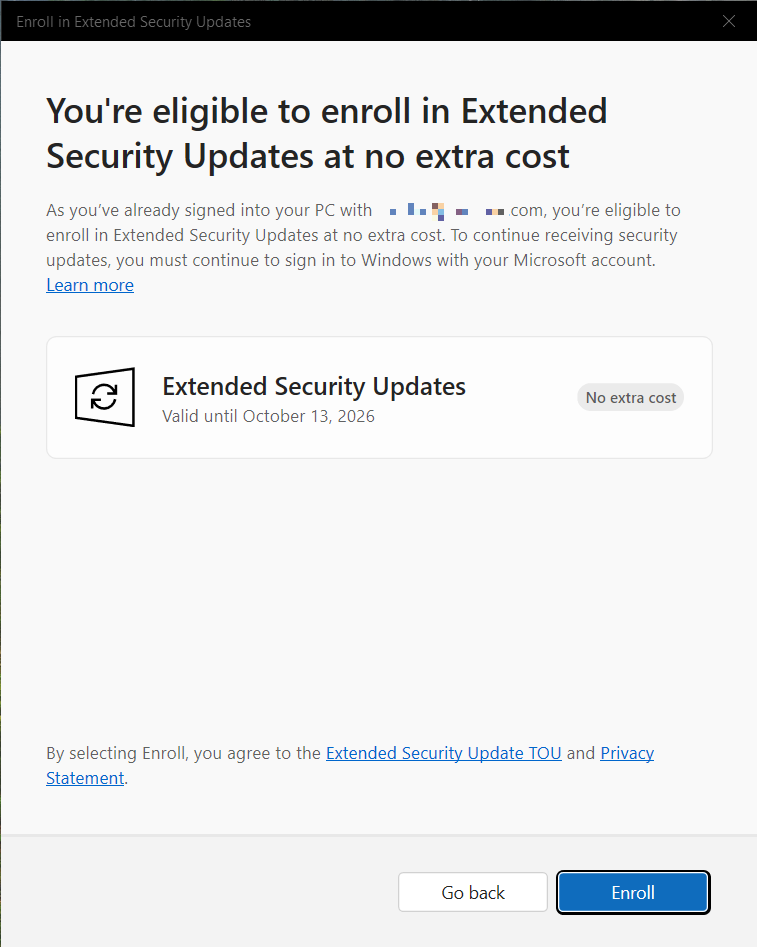
- You’ll be told whether you’re eligible or not, and how much it’ll cost.
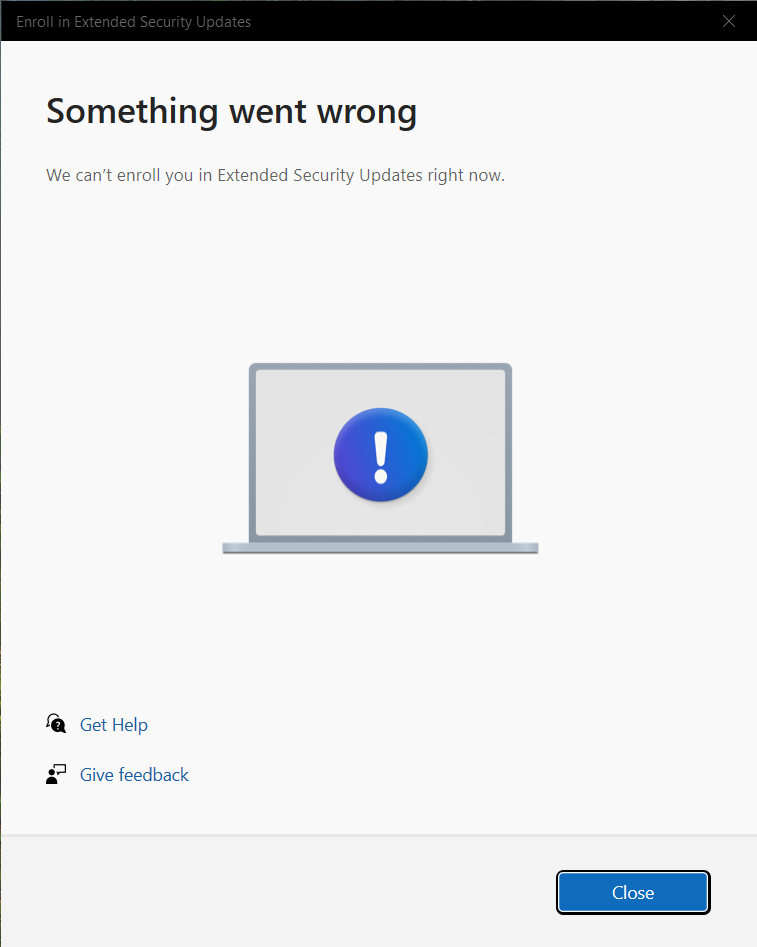
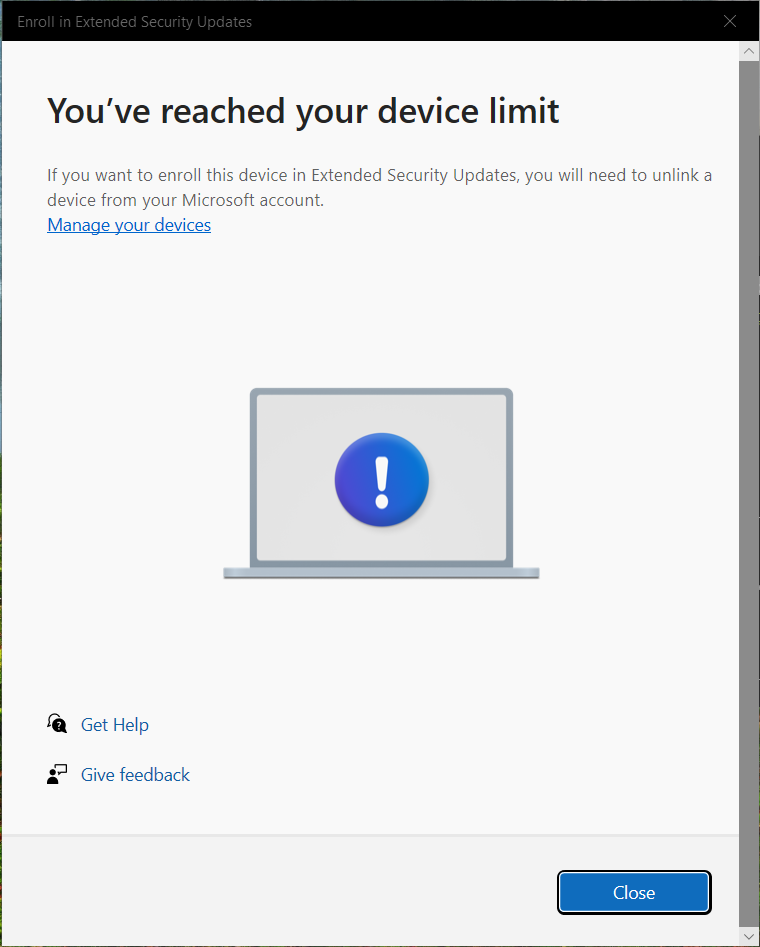
- During enrollment, you might get errors, some more helpful than others. Apparently you can only have a maximum of 10 devices, so if you’ve reached the limit, delete some from your Microsoft account.
- Once done, updates should start flowing in. Cheers!
Other Software
Keep in mind though, that while your OS might still receive updates until 2032, there are other important building blocks, like drivers and applications. So here’s a few components with their corresponding planned EOL dates:
| Component | Official support until at least |
|---|---|
| AMD | TBD |
| Google Chrome | N/A |
| Microsoft 365 | 2028 |
| Microsoft Edge | 2028 |
| Mozilla Firefox | TBD (for reference, Windows 7 is supported until EOL + 6 years, so if they follow the same schedule, 2031) |
| NVIDIA | 2026 for RTX (Game Ready) / 2028 (Security) |
| Steam | N/A |
It is important to note that “end of support” does not mean “it stops working immediately at that date”. It means the developers will no longer ensure it works. It may or may not.
One more caveat: no Wi-Fi 7 support, period. You need Windows 11, version 24H2 or newer.
In-Place Migration
This guide explains how to perform a clean install.
That means your current Windows installation is erased, along with all the files on it.
You can switch from Home/Pro to IoT without reinstalling, however, in my experience, random things will break, a prime example being WSL, which is a cornerstone tool for many of my tasks. If you’re interested, please refer to the Massgrave articles, but I won’t be covering it, simply because I can’t recommend it.
A few pointers though. Basically, you need to perform this in an admin command prompt:
reg add "HKLM\SOFTWARE\Microsoft\Windows NT\CurrentVersion" /v EditionID /d IoTEnterpriseS /fThen start setup.exe immediately. If the installer complains about language mismatch, you need to restart Windows into command prompt via the troubleshooter’s startup options, then switch the system’s default language to English:
dism /image:c:\ /Set-UILang:en-US Linux
If you’re interested, there are many great distros out there worth evaluating, like Ubuntu, Fedora or Mint. Gamers seem to like Bazzite, too.
Here’s a list of Windows apps and their Linux alternatives I found.
| Windows app | Linux equivalent | Notes |
|---|---|---|
| OneDrive | OneDrive Client for Linux | No Files-on-Demand |
| foobar2000 | fooyin | made by a former DeaDBeeF contributor specifically to mimic foobar2000 |
| IrfanView | ? | |
| Total Commander | Double Commander | |
| MPC-HC | VLC | Subpar subtitle options |
| Microsoft Office | Microsoft 365 Online / LibreOffice | |
| Mp3tag | MusicBrainz Picard / puddletag | |
| GOG | Lutris / Heroic Games Launcher | Official Linux client WIP |
| CPU-Z | CPU-X |
Luckily, a lot of apps already have native Linux versions, such as:
- Telegram
- Firefox / Opera / Vivaldi / Chrome / Edge
- VS Code
- Proton Authenticator
- PowerShell
- Steam
- Discord
- VirtualBox
- Docker Desktop
- qBittorrent
- TeamViewer
- Free Download Manager
- FileZilla
- GPXSee
- OCCT
Download
Massgrave is kind enough to mirror the ISOs that have been available for evaluation from Microsoft as well:
Make sure to select Windows 10 LTSC 2021 from the menu (it defaults to Windows 11), then download the ISO.
Installation
Grab a USB drive that’s at least 8 GB in size. If there’s anything you need from it, save it first, because this process will erase everything.
Download Rufus, the application used to write the contents of installer ISOs to USB, then write the ISO to your USB:

Click Start and set the additional options to your liking:
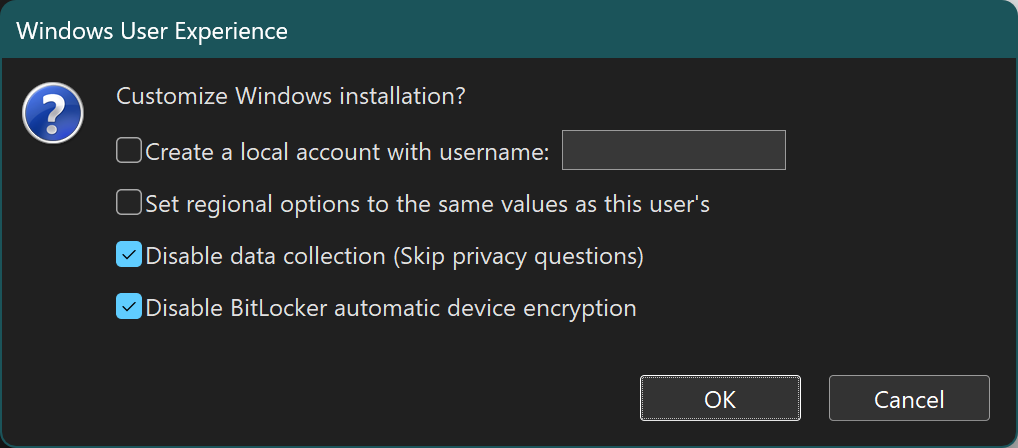
Why did I disable BitLocker, you might ask? Because the Windows installer doesn’t ask for the computer name during install, and you’ll end up with something like DESKTOP-AGH432. That’s nor very helpful. So I prefer finishing the installation, renaming the PC to something memorable, and THEN performing the BitLocker encryption, so that when I’m looking for a recovery key in my Microsoft account, I actually find what I’m looking for. No, you can’t rename the recovery key on the web afterwards.
Boot up your computer and open up the boot menu. This differs from motherboard to motherboard, sometimes it’s F8, sometimes it’s F11, or maybe F12, check your mobo manual if needed.
Select the newly created USB installer to boot. On the Activate Windows page, select I don’t have a product key:

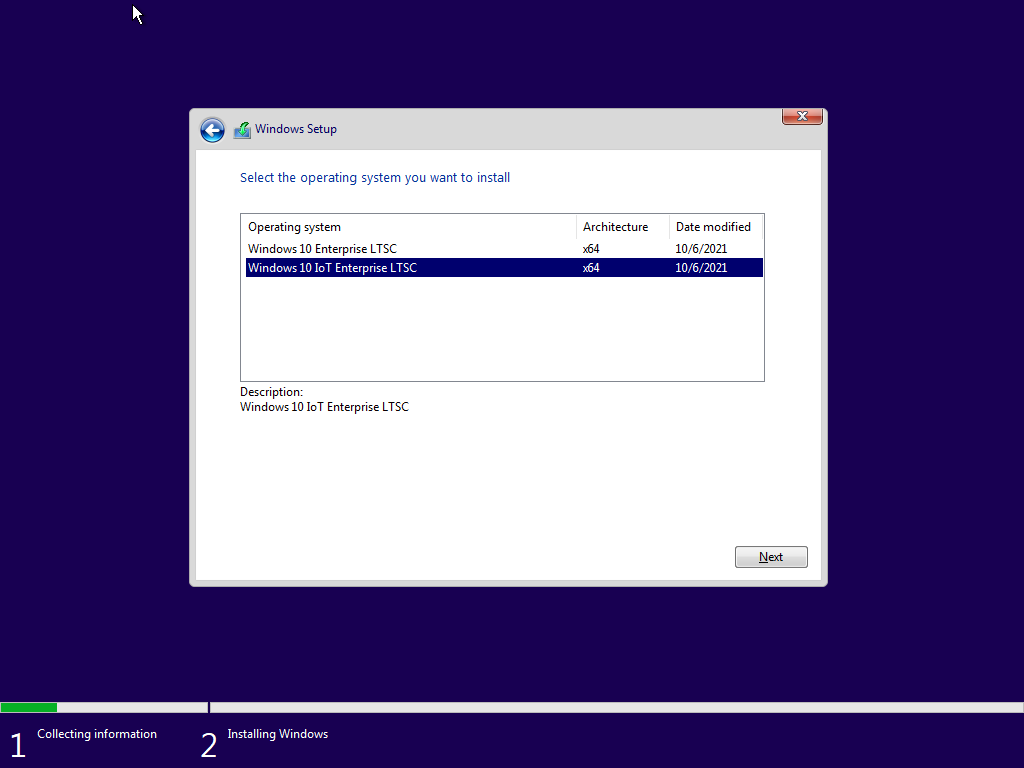
For edition, select the IoT option:
Then finish the installation.
Login
Some of the putrid mess already crept into Windows 10, one of them being the MS account requirement. After the installation, it’ll ask for your Microsoft account. Which you may or may not want to use. But as you can see, there’s no option to use a local account, at least at first sight:
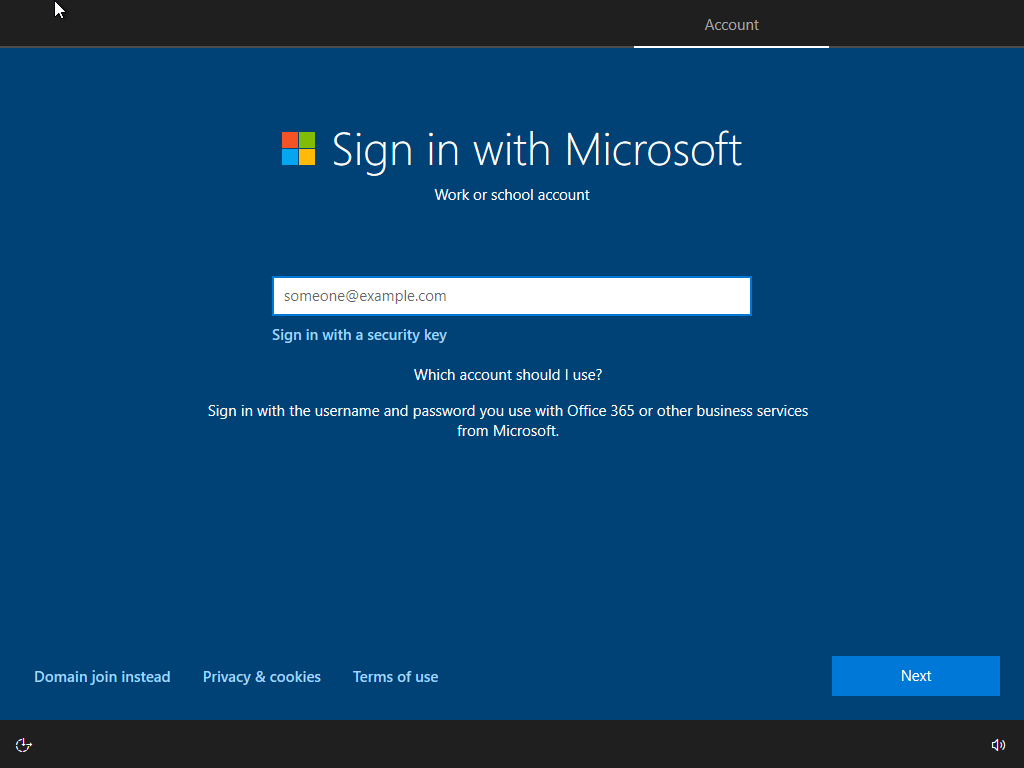
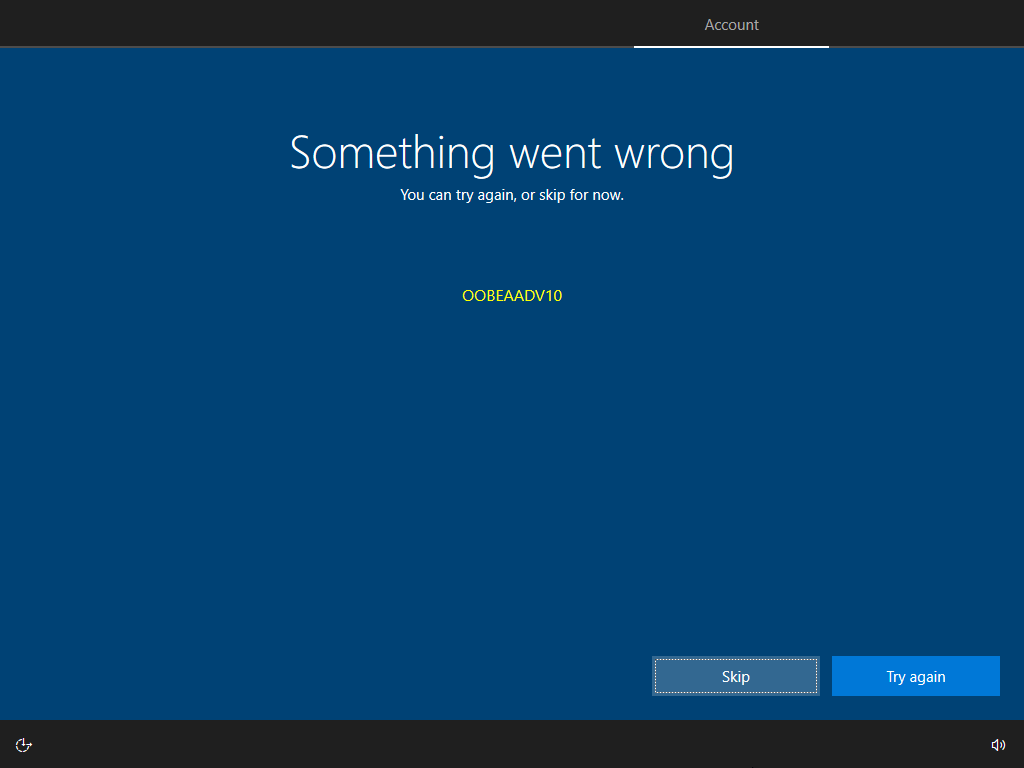
Solution? Unplug your network cable. Yes, I’m serious. Now the problem is that this screen won’t refresh on its own, so click on Sign in with a security key, and let it error out, then click Skip:
Then will it let you specify an offline account:
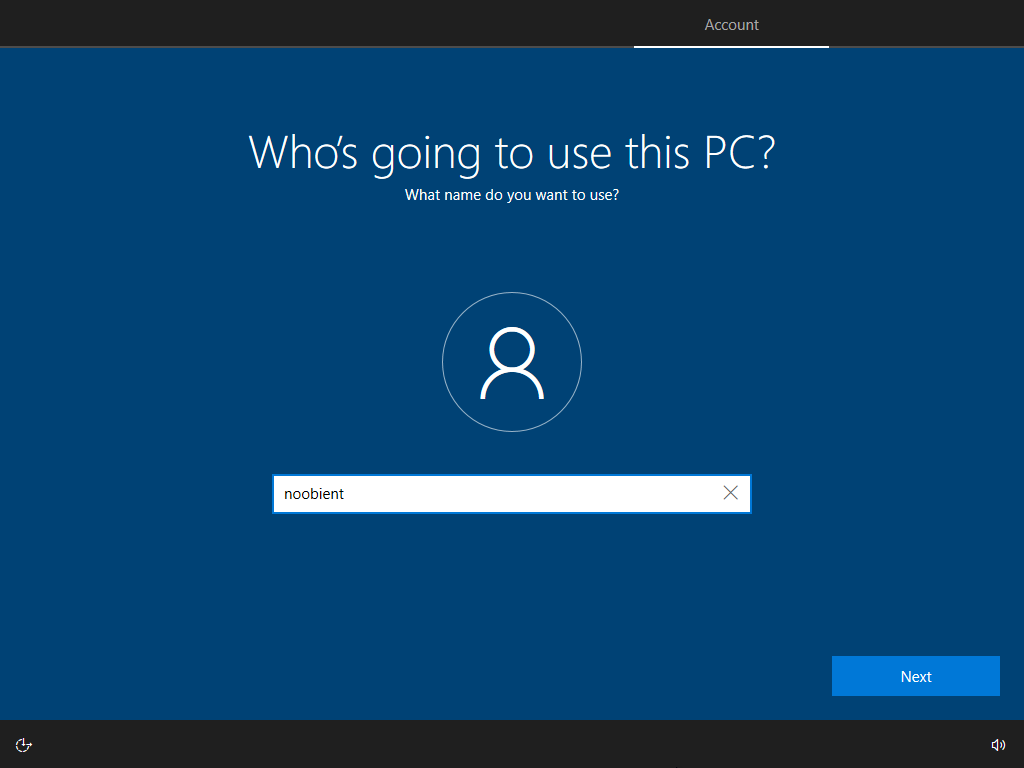
After you’ve set up your local account, feel free to plug back in the network cable.
Windows Update
Before doing anything else, install all available updates. I’m serious. A lot of things will break without it.
Activation
That’s something that Massgrave would possibly cover, and it has no place here. It’s out of scope for our technical experiment, I neither participate in, nor endorse activities like this.
One technical note though, allegedly it can produce errors like this:
[licensing.mp.microsoft.com/v7.0/licenses/content] The underlying connection was closed: Could not establish trust relationship for the SSL/TLS secure channel.
Checking Licensing Servers              [Failed to Connect]
Activation Failed [Error Code: 0x80072F8F]
In that case, my guess is that:
- The PC’s clock should be running correctly, and adjusted / synced if needed.
- All available updates via Windows Update would have to be installed, as mentioned above.
- If the system ran virtualized (e.g. VirtualBox), switching the adapter type from NAT to bridged may have helped.
- Lastly, installing Cloudflare WARP and turning it on during the process would’ve been an option, too.
Microsoft Store
You may or may not like the MS Store, but it’s certainly useful for some apps. For instance, you might wanna replace this Windows 7-style calculator with the Store version:

To fix the MS Store, ensure you have Internet, then open PowerShell as admin, and issue the following command:
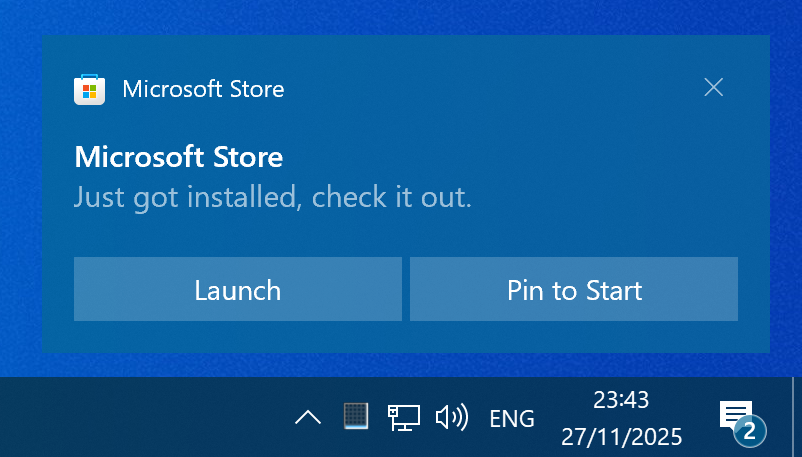
wsreset -iThen wait for the notification that it’s done, and you’re good to go:
If you receive an
Error: 0x80072f8fThen see the Activation section above for pointers. You might also get another error:
'C:\Windows\system32\ClipRenew.exe' is not recognized as an internal or external command, operable program or batch file.But you can safely ignore this one, won’t affect Store functionality. Check in Task Manager for disk/CPU/network activity – if the computer is idle and Store still won’t appear, reboot the system and issue the wsreset -i command again, it should work eventually. Yeah, I know, it’s a mess.
Useful utilities:
- AV1 Video Extension
- Microsoft Photos
- Ookla Speedtest
- Snipping Tool
- WebP Image Extension
- Windows Calculator
- Windows Camera
OneDrive
This is another thing we take for granted in consumer editions, but here it takes some quirks to fix.
You need to actually download OneDrive and install it. Now you can sign in, and sync will work indeed, but when you click on the OneDrive shortcut in File Explorer, nothing happens.
To fix this, create OneDriveFix.reg:
Windows Registry Editor Version 5.00

[HKEY_LOCAL_MACHINE\SOFTWARE\Microsoft\Windows\CurrentVersion\Explorer\FolderDescriptions\{5E6C858F-0E22-4760-9AFE-EA3317B67173}]
"Category"=dword:00000002
"Name"="Profile"

[HKEY_LOCAL_MACHINE\SOFTWARE\Microsoft\Windows\CurrentVersion\Explorer\FolderDescriptions\{A52BBA46-E9E1-435f-B3D9-28DAA648C0F6}]
"Attributes"=dword:00000001
"Category"=dword:00000004
"DefinitionFlags"=dword:00000040
"Icon"=hex(2):25,00,53,00,79,00,73,00,74,00,65,00,6d,00,52,00,6f,00,6f,00,74,\
  00,25,00,5c,00,73,00,79,00,73,00,74,00,65,00,6d,00,33,00,32,00,5c,00,69,00,\
  6d,00,61,00,67,00,65,00,72,00,65,00,73,00,2e,00,64,00,6c,00,6c,00,2c,00,2d,\
  00,31,00,30,00,34,00,30,00,00,00
"LocalizedName"=hex(2):40,00,25,00,53,00,79,00,73,00,74,00,65,00,6d,00,52,00,\
  6f,00,6f,00,74,00,25,00,5c,00,53,00,79,00,73,00,74,00,65,00,6d,00,33,00,32,\
  00,5c,00,53,00,65,00,74,00,74,00,69,00,6e,00,67,00,53,00,79,00,6e,00,63,00,\
  43,00,6f,00,72,00,65,00,2e,00,64,00,6c,00,6c,00,2c,00,2d,00,31,00,30,00,32,\
  00,34,00,00,00
"LocalRedirectOnly"=dword:00000001
"Name"="OneDrive"
"ParentFolder"="{5E6C858F-0E22-4760-9AFE-EA3317B67173}"
"ParsingName"="shell:::{018D5C66-4533-4307-9B53-224DE2ED1FE6}"
"RelativePath"="OneDrive"Just double click this file to add it to your Registry, and voila, the OneDrive link should work in File Explorer, too.
PowerShell
The PowerShell that comes with Windows 10 is really old, so it is advisable to get the latest version:
There are tons of files here, just search for win-x64.msi.
MSIX Installers
When you try opening this type of installer, such as the Python Install Manager, which is apparently the way to install Python now, you’ll get a prompt like this:
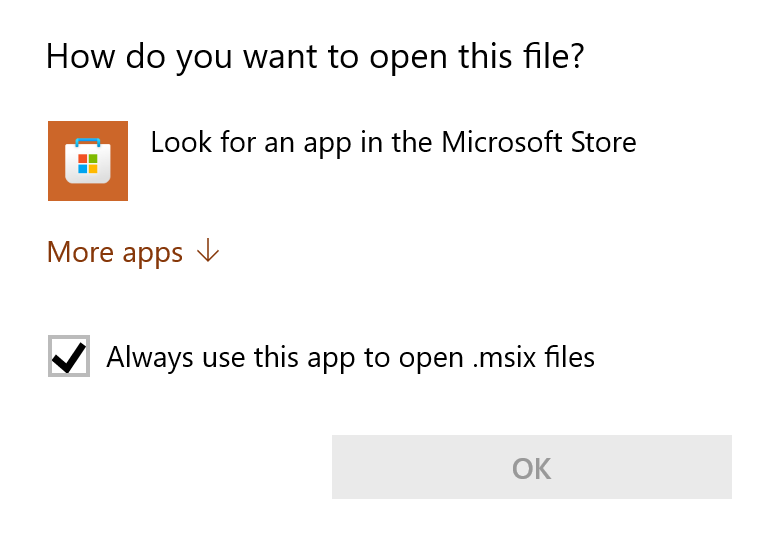
As in, Windows has no idea how to open it. Then you google a bit and find that you can work around this by using this PowerShell command:
Add-AppxPackage -Path python-manager-25.2.msixBut then all you get is:
Add-AppxPackage: The 'Add-AppxPackage' command was found in the module 'Appx', but the module could not be loaded due to the following error: [Operation is not supported on this platform. (0x80131539)]
For more information, run 'Import-Module Appx'.
Then you google some more and realize it’s all a huge mess where they break their own features in true Microsoft fashion. So just business as usual. You can try some of the workarounds, but none of them really works, until you find that all you have to do is just use the classic “blue” PowerShell v5 that comes with Windows. Yeah, good thing we just installed v7, right?
Microsoft Spyware
If you’re not a big fan of data collection, you may use O&O ShutUp10++ to disable the “telemetry” features you don’t want in your life:
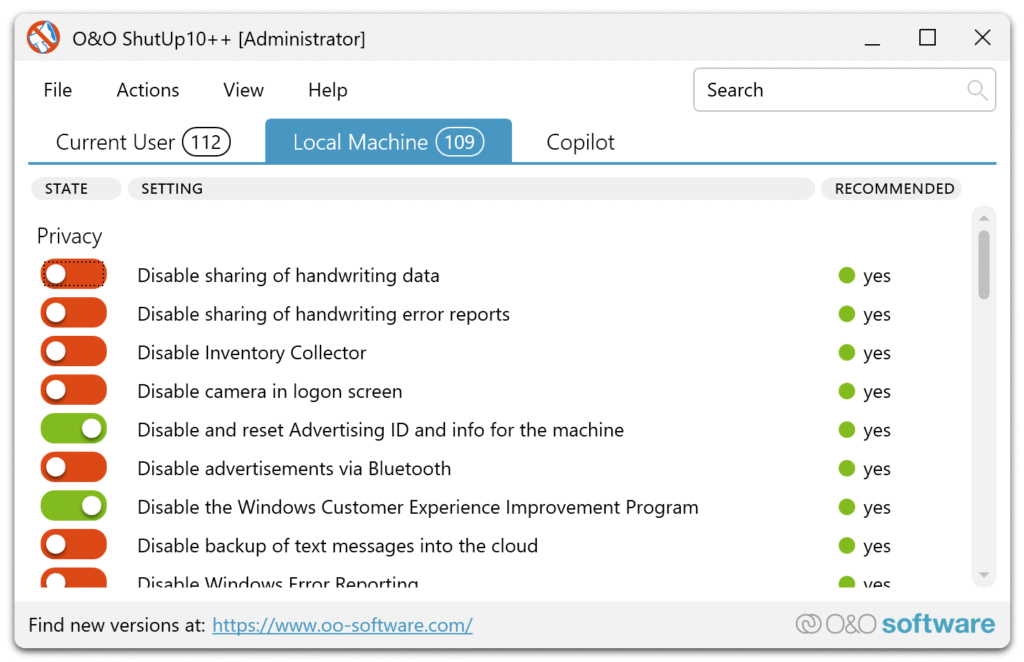
Just be careful, because these “tweakers” are most certainly not always perfect.
Game Bar
Whenever you open a game, you get this pop-up:
You’ll need a new app to open this ms-gamingoverlay link
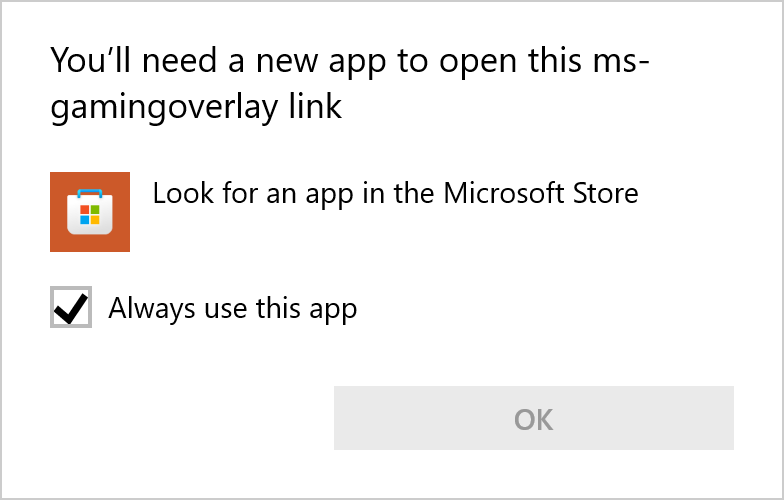
You can either disable the Xbox Game Bar via Settings / Gaming / Game Bar:
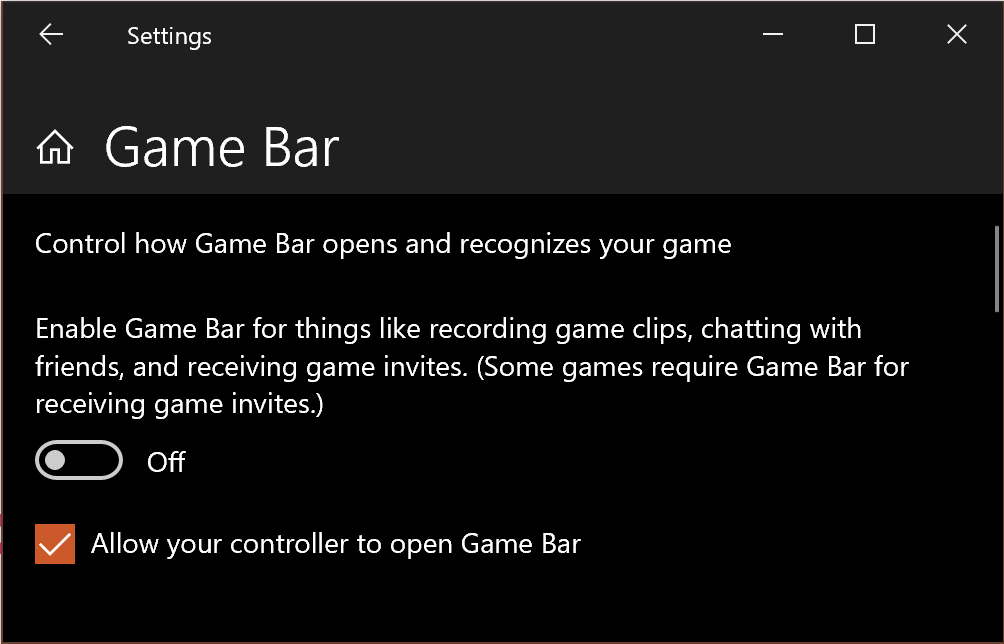
Or install the Game Bar app from the Store to actually make it work as intended.
Developer Zone
Git
If, for whatever reason Git refuses to use your SSH keys loaded in PuTTY‘s Pageant, just make sure to set the GIT_SSH environmental variable properly:
GIT_SSH=C:\Program Files\PuTTY\plink.exeSymbolic Links
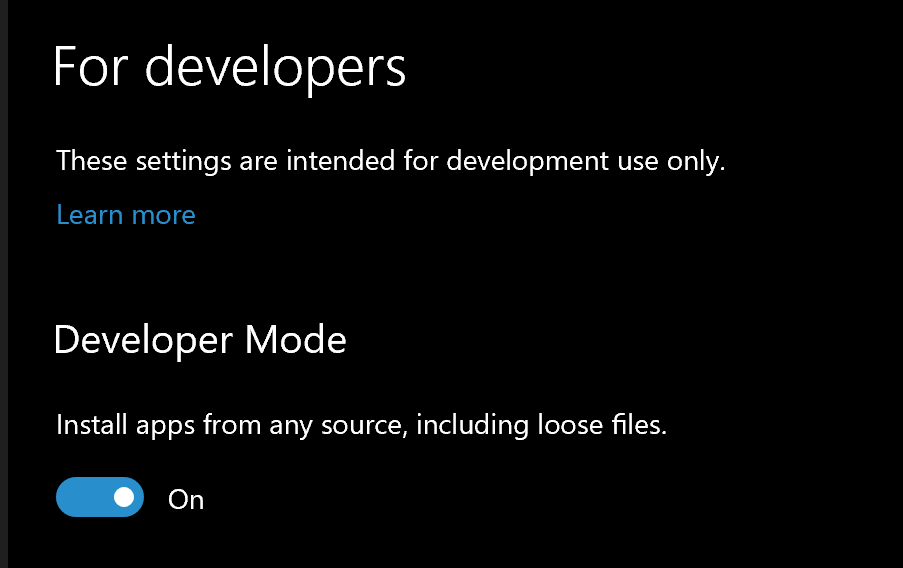
Enable user symbolic links via Settings / Update & Security / For developers (or just run Command Prompt as admin to use mklink):
WSL
WSL is an awesome piece of software that lets you use Linux from Windows without “real” virtualization. To install it, open PowerShell as admin, then:
PS C:\Windows\System32> wsl --install
The requested operation requires elevation.
Installing: Virtual Machine Platform
Virtual Machine Platform has been installed.
Installing: Windows Subsystem for Linux
Windows Subsystem for Linux has been installed.
Installing: Windows Subsystem for Linux
Windows Subsystem for Linux has been installed.
Installing: Ubuntu
Ubuntu has been installed.
The requested operation is successful. Changes will not be effective until the system is rebooted.
So do just that. After the reboot, verify you got the right version:
PS C:\Users\noobient> wsl --version
WSL version: 2.6.1.0
Kernel version: 6.6.87.2-1
WSLg version: 1.0.66
MSRDC version: 1.2.6353
Direct3D version: 1.611.1-81528511
DXCore version: 10.0.26100.1-240331-1435.ge-release
Windows version: 10.0.19044.6575
If it errors out with unknown flag --version and prints the help, you did something wrong, but it shouldn’t. After the reboot, it’ll also install Ubuntu automatically.
Downloading: Ubuntu
Installing: Ubuntu
Distribution successfully installed. It can be launched via 'wsl.exe -d Ubuntu'
Launching Ubuntu...
Provisioning the new WSL instance Ubuntu
This might take a while...
Create a default Unix user account: noobient
New password:
Retype new password:
passwd: password updated successfully
To run a command as administrator (user "root"), use "sudo <command>".
See "man sudo_root" for details.

noobient@tomahawk:/mnt/c/Windows/system32$
While you’re at it, you might as well install Windows Terminal from the Store, it’ll make your life much easier.
Conclusion
This was purely a technical experiment, no infringement intended. Now that we’ve successfully concluded our academic research and observed the way the IoT edition installation works, you can delete it from your hard drive.