About
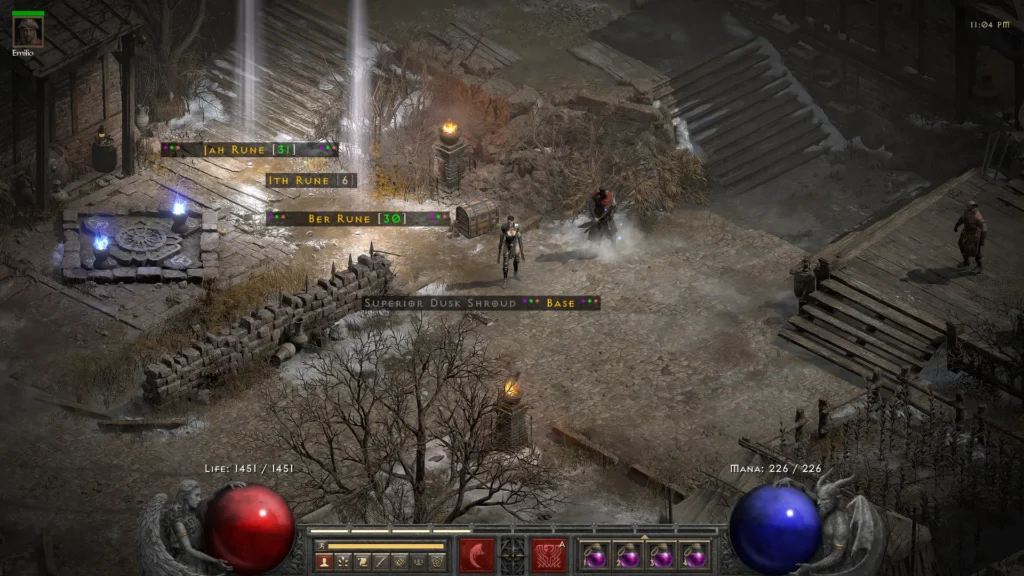
Enigmator is an item highlighter and QoL mod for Diablo II: Resurrected using D2RMM. Never ever miss an important drop, like that precious Jah rune you’ve been farming for your first Enigma for the past 3 months.
Table of Contents
Features
- Skip intro animations (similar to
-skiptobnetin D2 LoD) - Assassin charges HUD with adjustable height and charge order
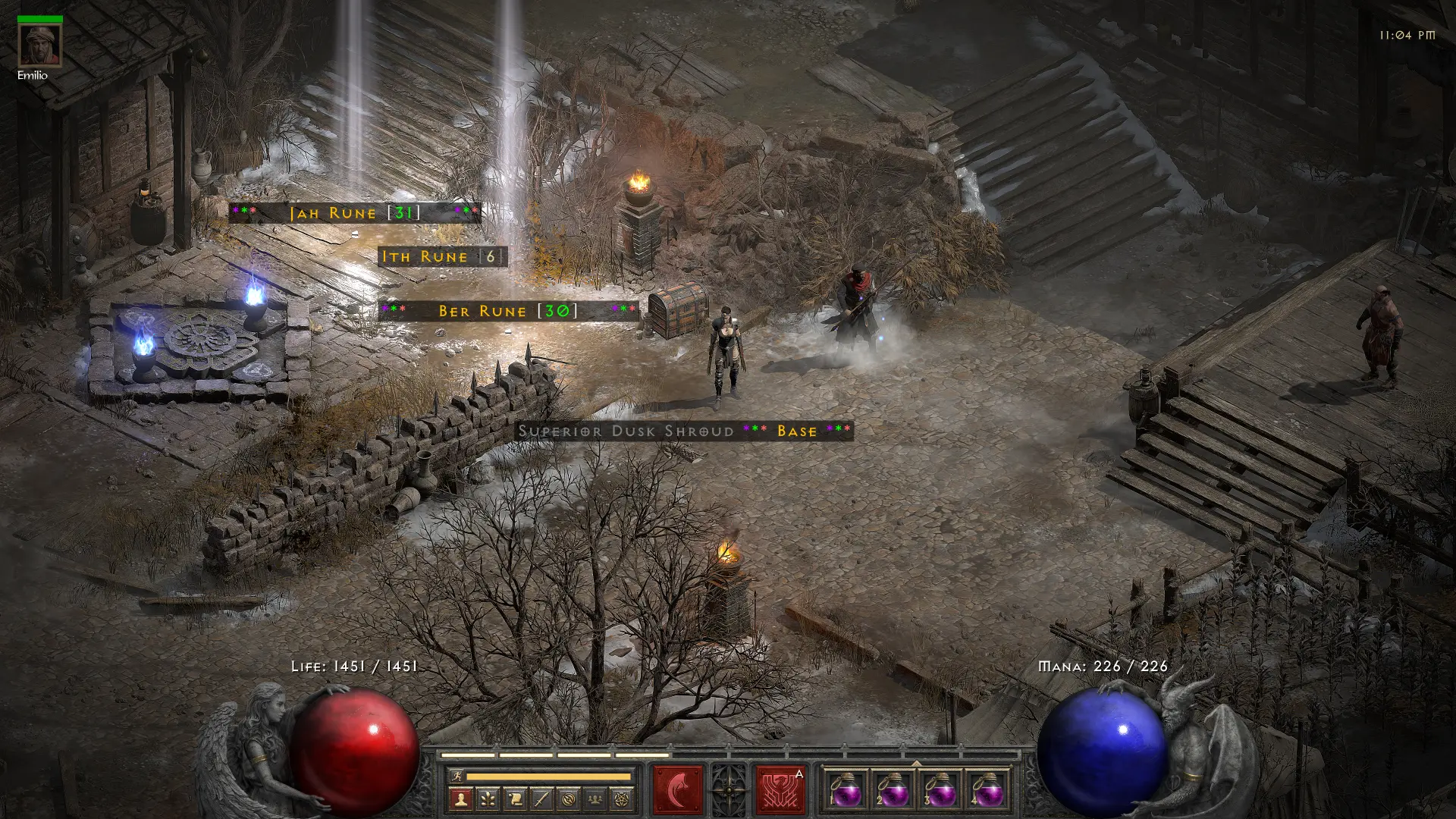
- Illuminate the runes of your choice with a glorious light beam
- Same thing for gems
- Colorful highlight text for the chosen base items
- Colorful rune names with rune level indicator
- Colorful names for gems as well
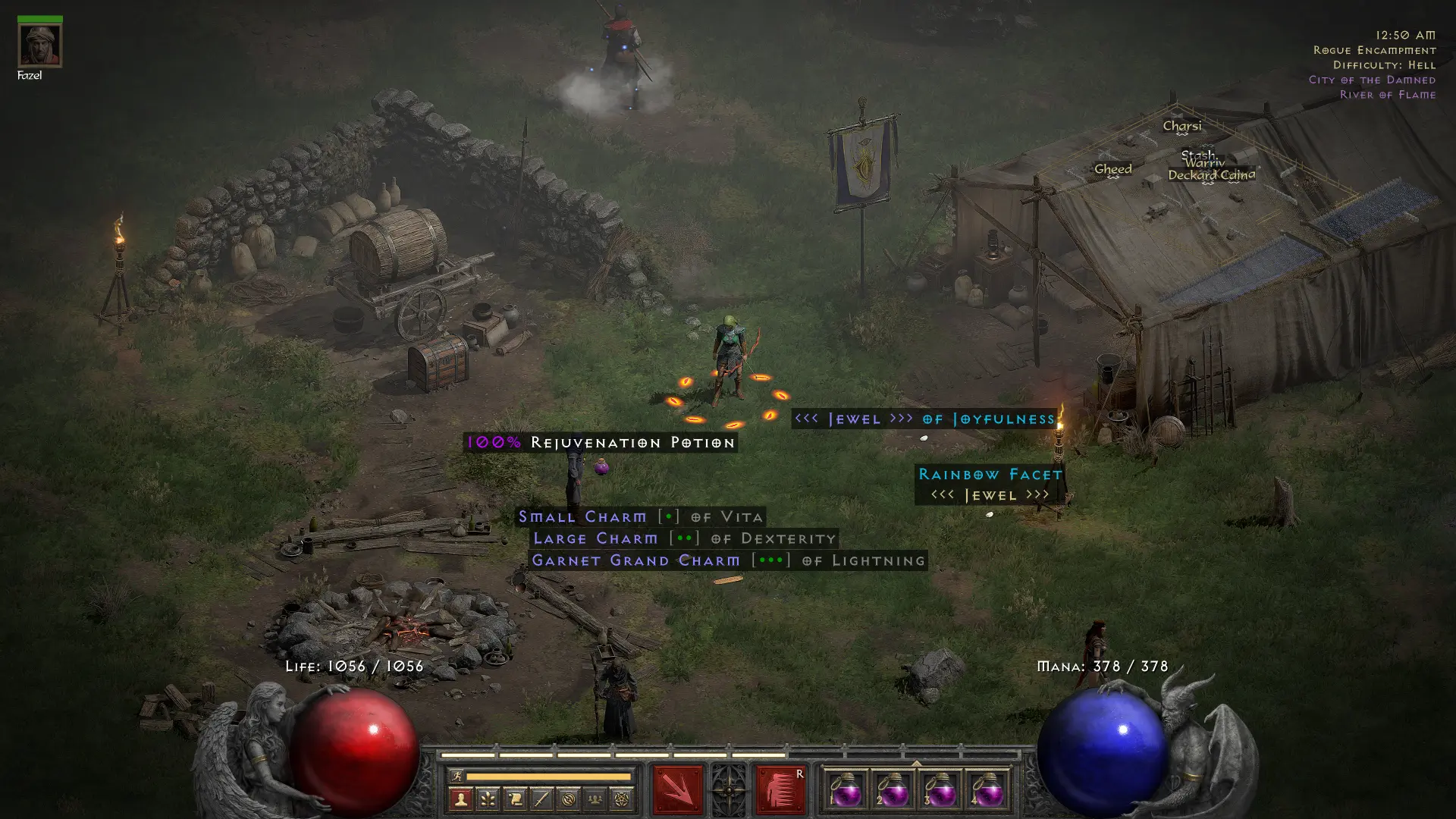
- Highlighted full rejuvenation potions
- Fancier charm names, too
- Oh and also jewels
- Option to hide potions, scrolls, and the “gold” caption in gold drops
- All this configurable via proper D2RMM mod settings, no manual editing required
Usage
First of all, backup your saves under C:\Users\<YOUR USER>\Saved Games\Diablo II Resurrected. No,
this mod WILL NOT touch your saves in any shape or form, ever.
But to enable mods, you need to create symbolic links / copies in your saves directory (more on that later, I promise it’s much simpler than it sounds), which may result in accidents if you don’t pay attention. In an ideal world, nothing should ever get deleted or messed up, but it’s better to make sure, just in case. Trust me, you don’t want to lose 5 years of loot by accidentally deleting a folder. Zip it or something.
I’m serious, do backup your saves first.
Once done with the backup:
- Download and extract D2RMM
- Download Enigmator and extract it to D2RMM\mods
- Start D2RMM.exe
- Configure Enigmator to your needs via mod Settings
- Apply via Install Mods
- Go to Battle.net / D2R / Gear icon / Game Settings, and specify as Additional command line arguments:
-txt -mod D2RMMNow you have two options:
Offline + Online
In this setup, you use the same saves with or without mods. While I can assure you that Enigmator will never ever modify your saves and stashes in any way, there are several mods that do. So if you intend to run other, character / inventory altering mods along with Enigmator, do not use this method.
We live in the year 2025 but symbolic links still require admin rights on Windows (which is stupid), so turn on Developer Mode via Settings / Update & Security / For developers to let regular users create links too:
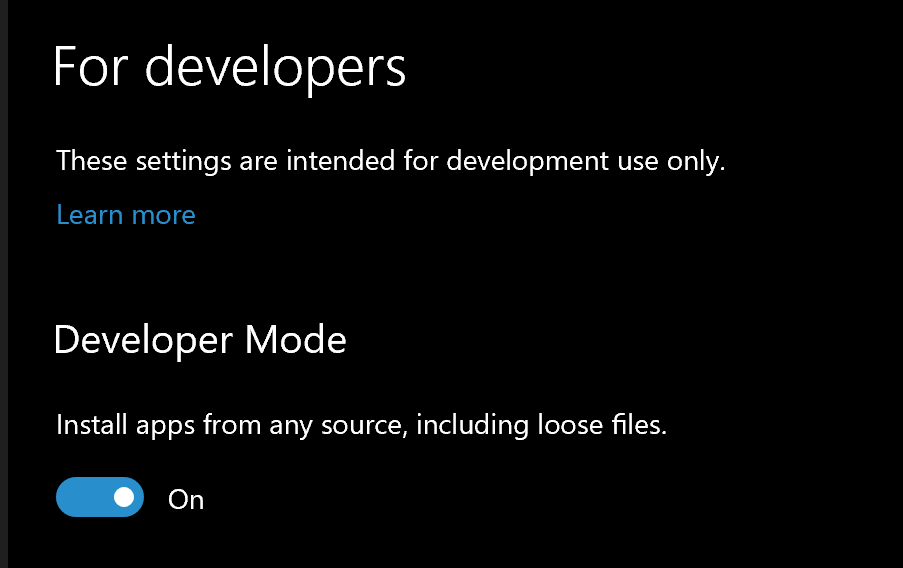
Open Command Prompt (cmd.exe) and basically point your mod saves to use the current saves location:
cd "%HOMEPATH%\Saved Games\Diablo II Resurrected"
mkdir mods
cd mods
mklink /d D2RMM ..
You just created a symbolic link, or symlink. In layman’s terms, this tells your system to make the same directory available both via the Saved Games\Diablo II Resurrected and via the Saved Games\Diablo II Resurrected\mods\D2RMM paths.
That’s it. Now you can start the game from the Battle.net app. It will work both offline and online.
If you insist, you can also launch the game via D2RMM / Run D2R, but this method will disable access to your online characters. If you’re worried about bans, this might be a way to minimize the risk.
Offline Only
Just click Run D2R in D2RMM, but you won’t see any of your existing saves.
If you want to use your existing saves, you need to copy them from Saved Games\Diablo II Resurrected to Saved Games\Diablo II Resurrected\mods\D2RMM, and do note that once you do this, you’ll have different versions of these saves, depending on whether you run the game with or without mods.
Messy, huh? That’s exactly why I myself also use the first method instead.
Updates
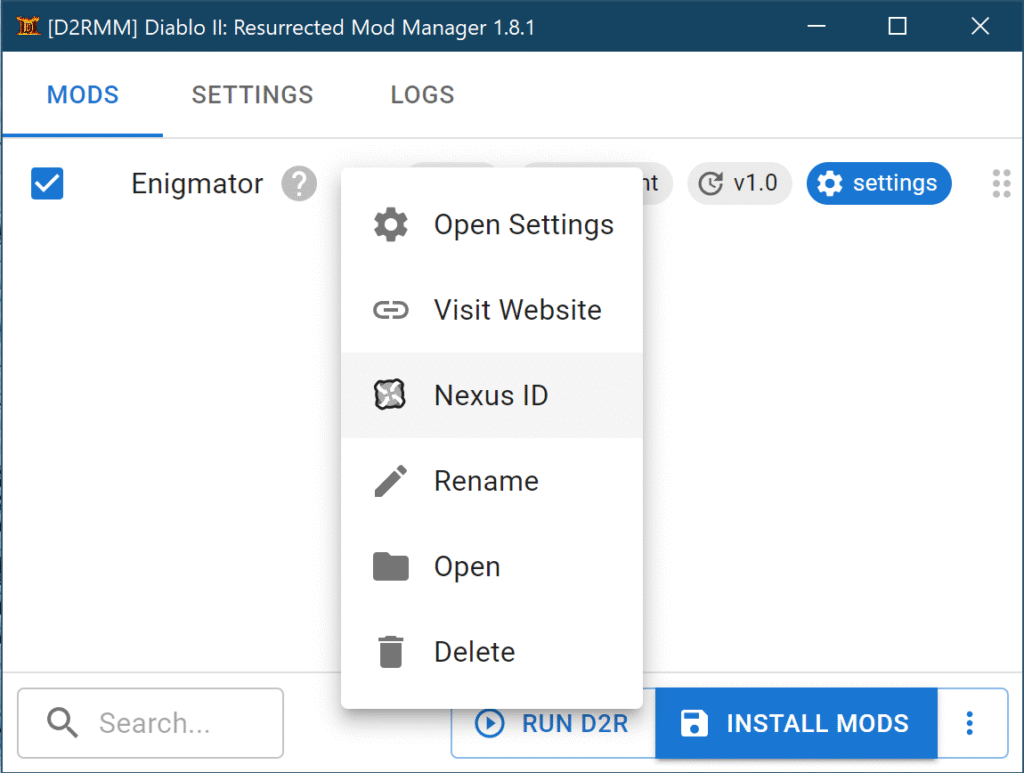
You can let D2RMM handle Enigmator updates, but you have to link the mod to Nexus Mods first. Right click on the mod in the mod list, then select Nexus ID:
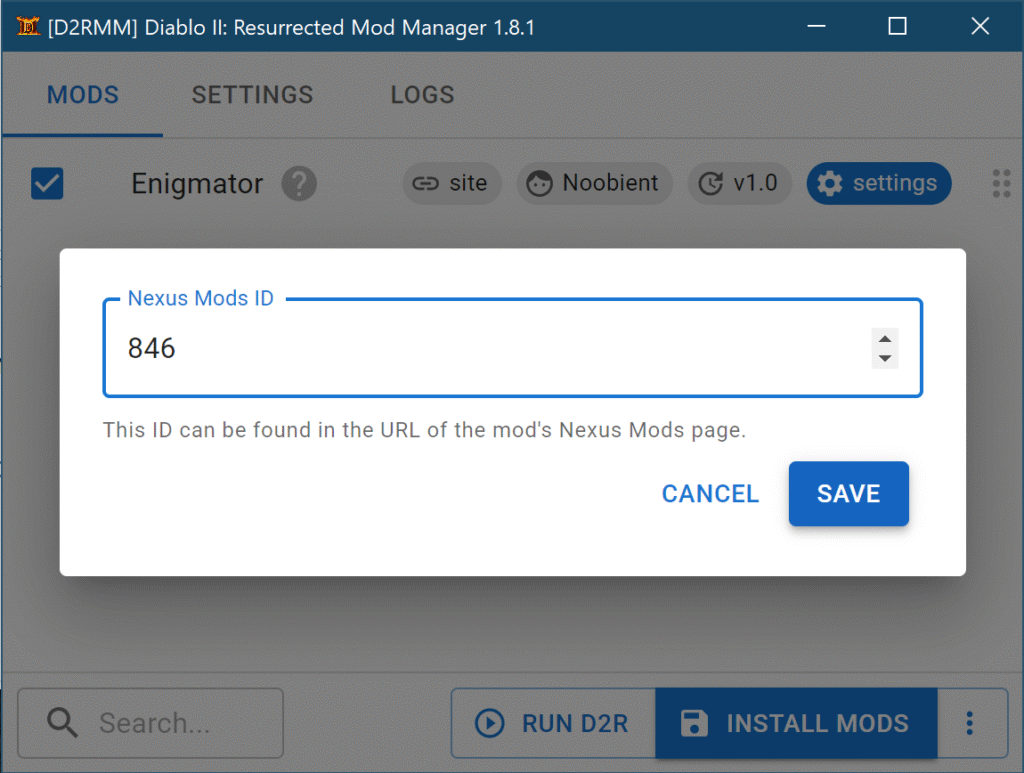
Enter the mod’s ID, which is 846, then click Save:
It’s probably also a good idea to log into Nexus Mods in D2RMM via Settings / Nexus Mods.
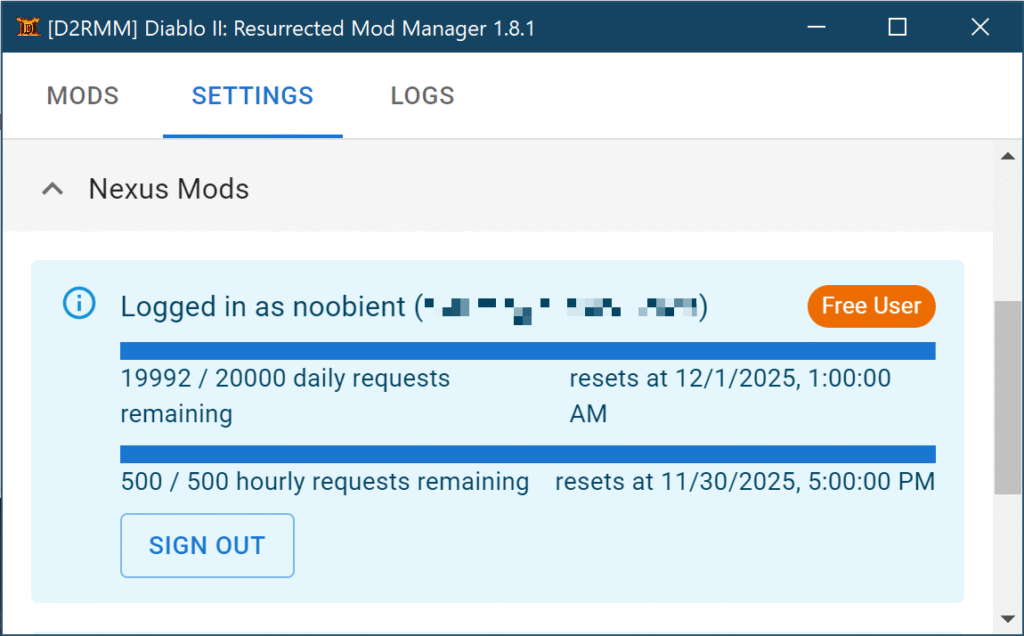
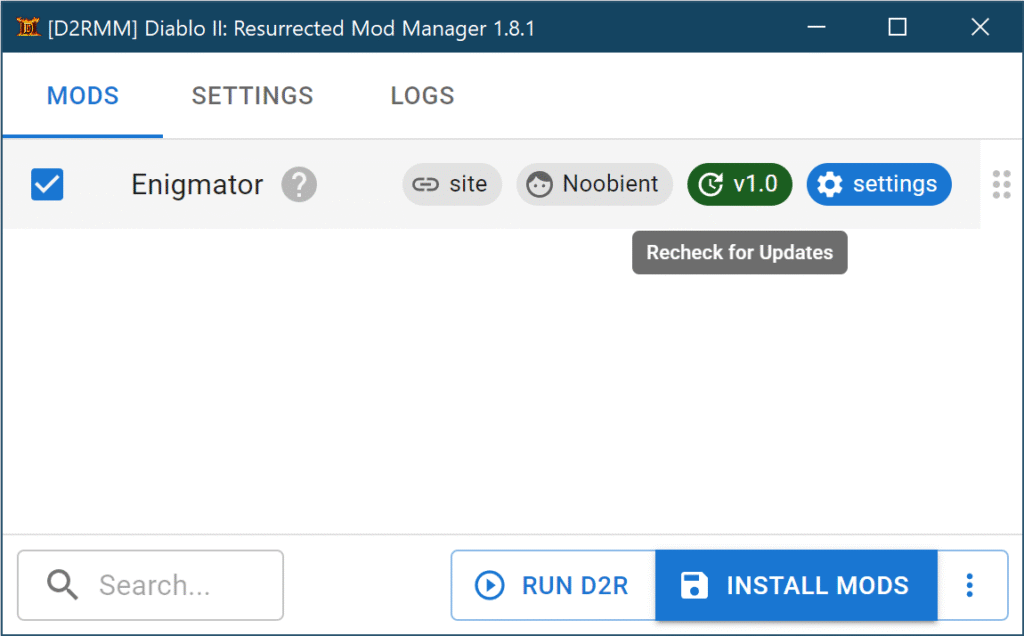
That’s it, now you can check for updates by clicking on the version number.
Screenshots
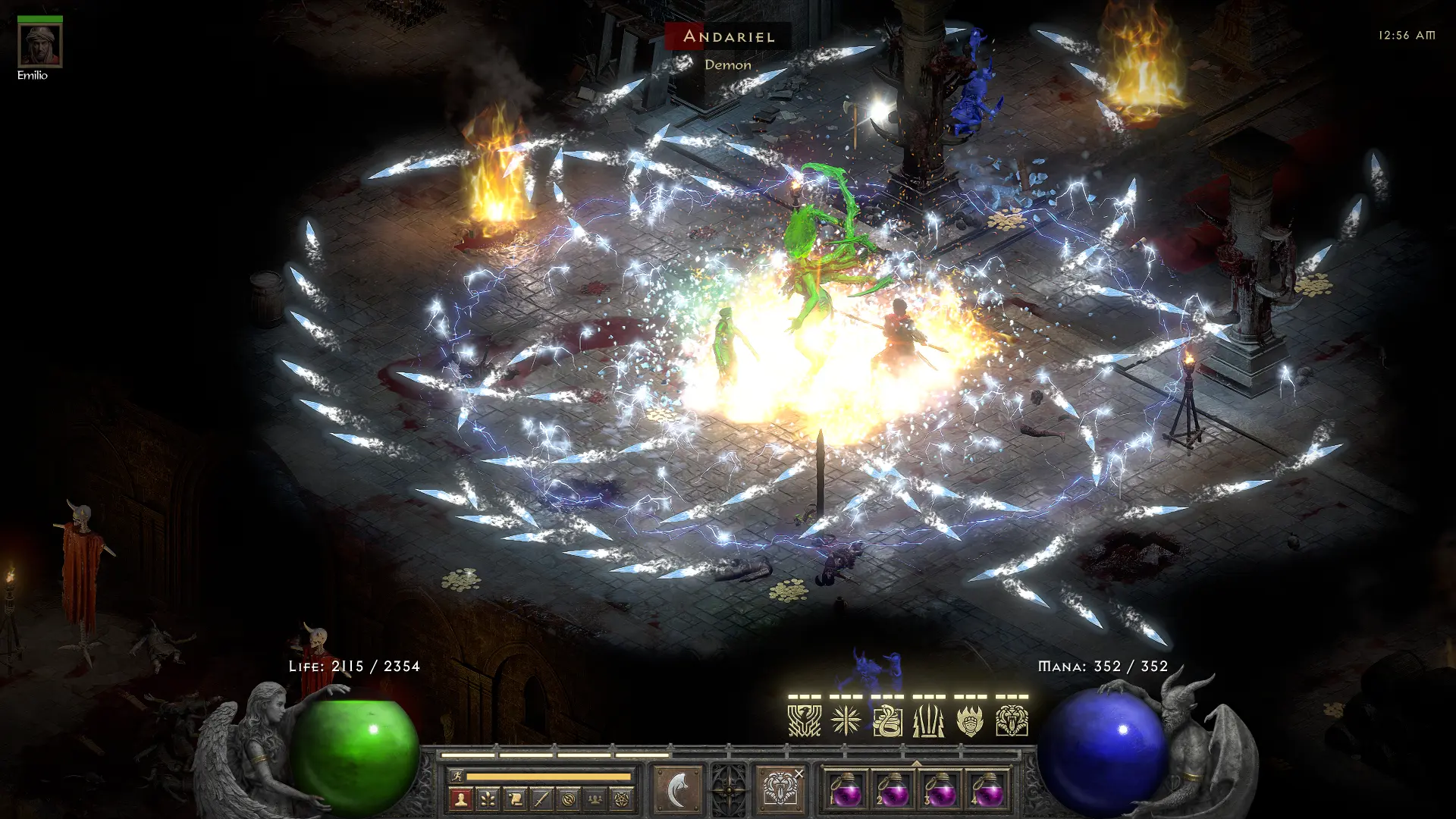
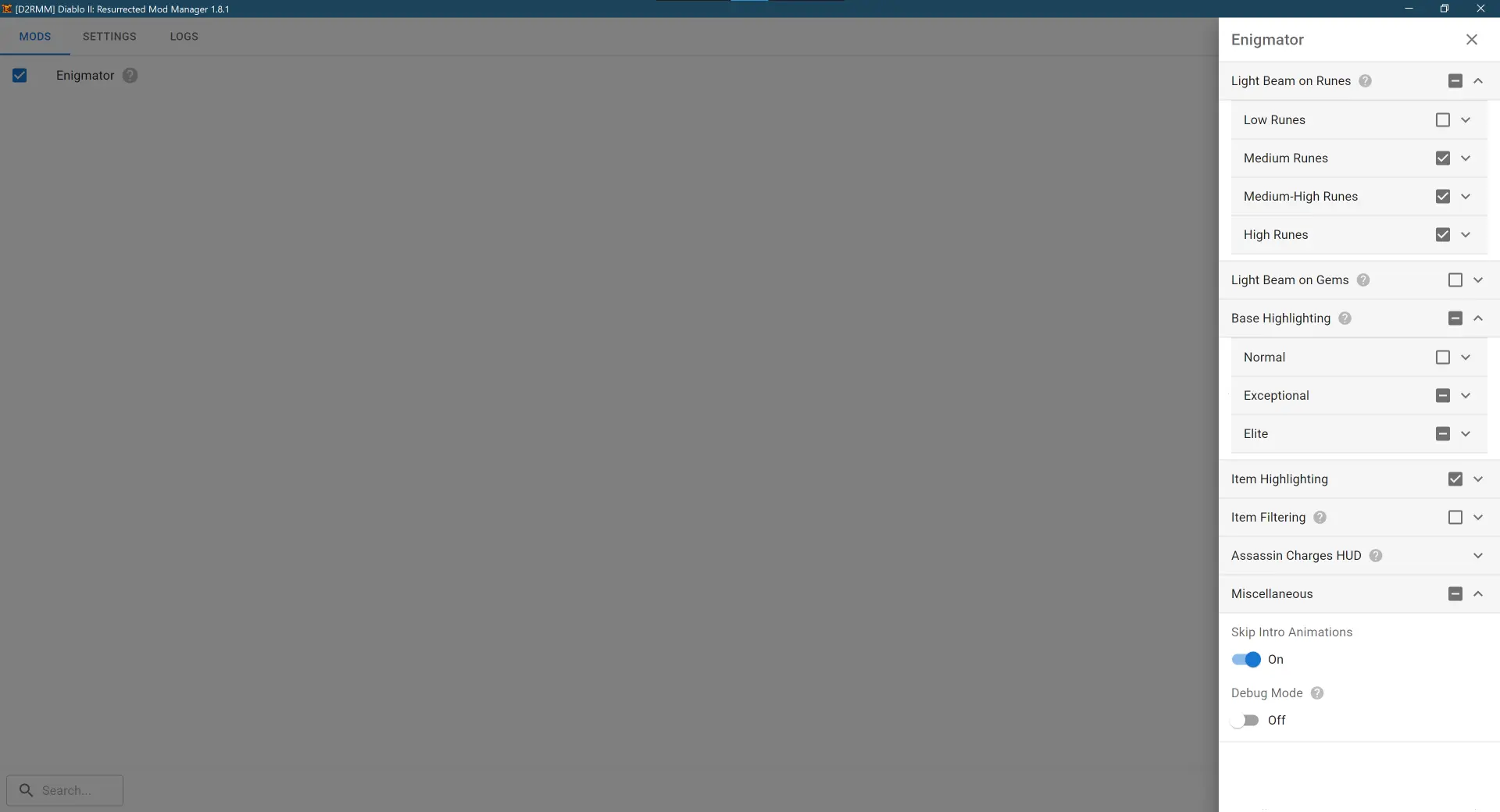
F.A.Q.
Is this a loot filter?
The most used term is “loot filter” for mods like this, but it is not possible to actually filter drops in D2R without implementing complex overlays and process intercom that will get you banned on Battle.net.
So the next best thing we can do is adjust the item names to our liking, which can include colors as well.
Why aren’t my settings applied?
Make sure to click Install Mods and restart the game every time you adjust your settings. It’s a bit weird, but to change settings, you need to “install” the mod, that’s just how D2RMM works.
Where are my mod settings saved?
In D2RMM\mods\enigmator\config.json.
How do I uninstall Enigmator?
That’s a bit confusing indeed. You need to uncheck the checkbox of Enigmator, then click Install Mods. Yes, you uninstall by clicking Install. No, don’t ask, because I don’t understand either.
Why don’t you just rename useless stuff to <empty string>?
Well, you can do just that via “Item Filtering” settings. So you can “filter” items, but it will NOT let you see more items on the floor, because the game is smarter (dumber?) than that. There’s an absolute hard limit of 32 on the drops the game can actually show. And this limit appears to be completely independent from the name length of the items on the ground. Even if you rename that precious minor health potion to “” (nothing), it’ll show that, an empty stripe. If you have 32 minor healing potions, and a Zod rune next to them, it’ll show “” 32 times, and the Zod rune is skipped.
That’s why there’s also a light beam feature that shows very vividly the important runes, even if that 32 limit is reached. The light beam effect is independent from item names, and is always displayed.
Cool, why no light beams on base items then?
Because, as you can tell, normal, exceptional and elite items share the same sprites. And since the light beam effect is applied to the sprite, if you enable it for one quality, you enable it for all qualities. In other words, if you turn on the light beam for dusk shrouds, it’ll illuminate ghost armors and quilted armors as well. Imagine the disappointment… So in the case of items, this light beam effect would only increase clutter, and therefore I decided to apply this only to runes and gems, and nothing else.
Why are unique/rare/magic items highlighted if I only want to see the white base items?
For similar reasons. The name adjustment is applied to language entries, not quality levels. The same “Archon Plate” string is used for normal, magic, etc. items. So if we change the string in the language file, it’ll show up in all places where it is used. This is a minor inconvenience that we just have to live with.
Still, why don’t you shorten item names?
You do have the option via Item Filtering, but it is important to understand what it is and what it isn’t for. It will reduce clutter on the screen, but it will NOT make the game show more items on the floor.
And this is due to the same 32 items limit. Filtering certain items does indeed reduce clutter on the screen, but it also gives you a false sense of security in the way that you wouldn’t assume you’ve reached the item limit because your screen hardly displays any text, while in reality the floor is full of crap, and you may or may not miss something important by moving around, picking up gold, etc. If you see the screen is full of crap, at least you know you have to move around a bit to ensure you don’t miss that important giant thresher you’ve been looking for.
Again, the light beam effect that you can (and should) enable for high runes does solve this, at least for runes, because that glistening pillar is visible regardless of the number of items on the floor.
Got it! Reduce font size, that’ll surely work!
Nope. Been there, done that. No matter how small the font size, still 32 items, period.
Will I get banned on Battle.net?
Name highlighting uses the very same translation feature of the game that is used by the officially supported languages, e.g. German.
The light beam feature merely adds the effects of the Valkyrie spawn and the Horadric Staff light beam to the runes / gems you specify. Nothing new is added to the game, no balance changes, no gameplay adjustments, just a visual cue.
The HUD indeed adds VFX to the game, but still nothing that changes game balance. It’s an overlay to clearly indicate charge status that you can already track via both the character screen’s damage indicator and the little glistening globes orbiting the player. It merely makes it less painful to figure out.
So while I can’t give you any guarantees at all, to me it seems extremely unlikely that Blizzard would develop any sort of detection specifically for this mod.
Regardless, the mandatory disclaimer:
I do not take any responsibility for any damage, harm, or loss caused by the use of this mod. Use at your own risk.
Data version mismatch detected
You might get this error while starting the game:
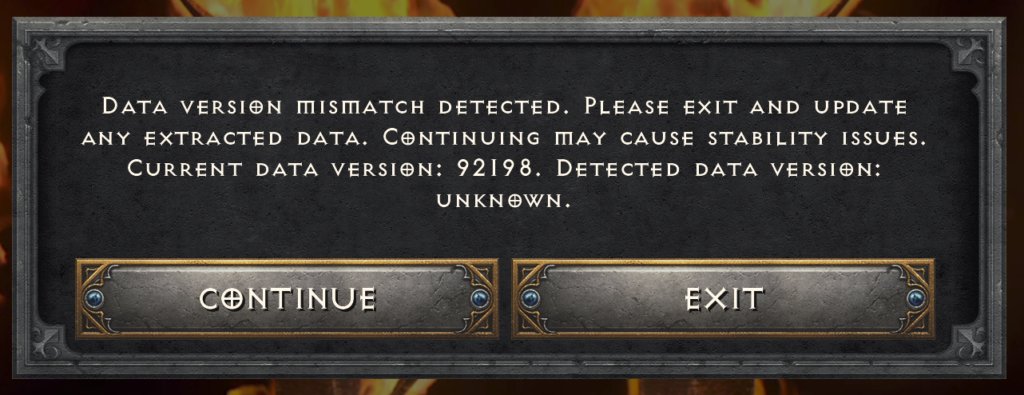
Data version mismatch detected. Please exit and update any extracted data. Continuing may cause stability issues. Current Data Version: 92198. Detected data version: unknown.
In this case, just update D2RMM to 1.9.0 (currently a pre-release).
If you’ve already updated to the latest, please also try to reinstall your mods.
Credits?
- Basic idea:
- Inspired by the Practical Item Filter by North Dakota
- Assassin Charges HUD:
- Original work by Bonesy
- Slight texture editing and reordering by Warren1001
- Adaptation to D2RMM by ispeaknousa
- Rewritten by me from hard-coded JSON copying to procedurally generated JSONs, with user adjustable positioning and ordering via D2RMM mod settings UI
- Skip Intro:
- D2RMM mod examples repo
Developer Zone
Source Code
The source code is available on GitHub.
Building D2RMM
- Install Visual Studio 2022 (newer versions won’t work) with the following components:
- Desktop development with C++ workload
- Windows 10 SDK
- Install Python 3.14
- Install Node.js 16 (newer versions won’t work)
- Install the VSSetup PowerShell module with:
Install-Module VSSetup -Scope CurrentUser - Install Yarn:
npm install -g yarn - Install the D2RMM dependencies:
yarn install
Then you can debug with:
npm startOr release with:
npm run packageType References
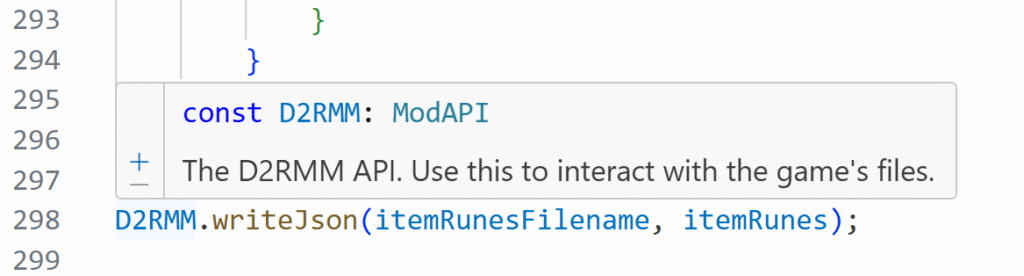
By default, your editor will most likely complain about D2RMM definitions:
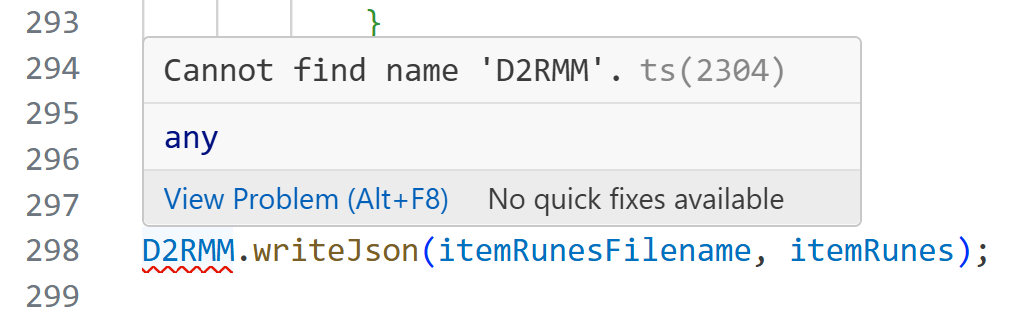
To solve this, you need to obtain a copy of the D2RMM sources in the same directory where the Enigmator directory is located, i.e. the resulting d2rmm and enigmator directories must be next to each other.
git clone https://github.com/olegbl/d2rmm.gitVoila, your IDE should be working perfectly:
Color Codes
TODO
| Color | Code | Example |
|---|---|---|
| White | ÿc0 | |