Table of Contents
Intro
All I wanted was being able to manage my servers from Ansible. And since Ansible only supports Linux (fully), I use WSL for Ansible. WSL has 2 generations, and v2 is superior in many ways, however, it has one serious drawback: Microsoft successfully broke IPv6 in it. After years of bringing up lame excuses, they eventually added it back and portrayed it as some great innovation. They innovated alright, because if you look at the fine print, now they require Windows 11 for the feature you already had years earlier. Because clearly, Windows 10 can’t handle WSL’s awesomeness anymore.
Now I’ll go on and rant about a lot of things here, mainly for my own reference, in case I’ll need any of this later to overcome some new burden that MS throws in my way, because I’m sure they won’t let me just be, without Windows 11. If you’re only interested in the actual solution, feel free to just jump to the Hyper-V Networking part.
Note: this workaround only works with Ethernet, and not with Wi-Fi.
Rebuilding
My first stab was at rebuilding WSL somehow, someway, to let me choose mirrored mode anyway. But boy, do they work really hard to prevent that. First of all, apparently the WSL repo didn’t even contain the source code until this May. And of course, that one already has this limitation. In other words, there’s no publicly available version of WSL 2 that you can actually build for Windows 10. Gee, we’re certainly off to a great start, but let’s try it anyway.
So you can install VS 2022 Community (if you still have the installer exe, that is, because MS obviously pulled it the moment 2026 came out), and the Windows 10 SDK, and so on. But then of course you get all sorts of compiler errors. CMakeLists.txt already has the precious
set(CMAKE_SYSTEM_VERSION 10.0.26100.0)Line, because you should upgrade to Windows 11, remember? Whatever, set it to 10.0.19041.0, the last Windows 10 SDK that we just installed with VS 2022.
Then comes the issue about Microsoft.Windows.ImplementationLibrary pulling in undefined symbols. Fine, let’s downgrade it, right? Yeah, except for the fact that the way they obtain NuGet packages somehow points CMake to a custom CDN, and MS was of course kind enough to restrict access to older versions. Isn’t that lovely? This doesn’t achieve anything except make your life a little bit harder. You can download the library from the NuGet gallery by hand, extract to packages\[library_name-version], and also ensure the .nupkg file is also in that same folder.
Then CMake will just jump to the next one in line, all is well. Apparently the last version that doesn’t have the pesky symbols is 1.0.231216.1. So download it, then also update packages.config to reflect this, and move on:
<package id="Microsoft.Windows.ImplementationLibrary" version="1.0.231216.1" targetFramework="native" />Cool, now we get some whining about C++ 20 and coroutine support, yada-yada. Fix it with
add_definitions(/AWAIT) # Enable coroutine supportThen again, some other crap that hallucinates things aren’t there while they are, which you can solve with /Zc:twoPhase-:
set(CMAKE_CXX_FLAGS "${CMAKE_CXX_FLAGS} /bigobj /W3 /WX /ZH:SHA_256 /Zc:twoPhase-")And it’s around here when I gave up. Feel free to mess around some more.
A helpful fella
While the MS engineers are too busy blabbing about this shiny new mirrored mode, there’s actually bridged mode, hidden in the docs, but they make sure to tell you that oh God kills a kitten every time you use it, so you shouldn’t, because it’s “deprecated”. But it’s not up to you anyway, because if you try to configure it, WSL will whine during startup and tell you that it doesn’t care what you want, it’ll use NAT anyway, because remember, you should upgrade to Windows 11.
Fortunately there are lovely folks like zenczykowski who remind us that WSL is, in many aspects, nothing more than a glorified wrapper around the existing Hyper-V infrastructure. And there’s actually no good reason to restrict us with these stupid, carefully planted, artificial limitations. But the answer he got was, of course, that you should upgrade to Windows 11.
But the best part is that the proposed workaround actually works. So this is the end of the rant, and now get to actually solving the task at hand!
Hyper-V Networking
In short, you need to change the WSL virtual switch to bridged mode. This is more tricky than it first sounds, because
- The virtual switch indeed disappears with each reboot, as zenczykowski said.
- HOWEVER, the binding that binds the vSwitch to the adapter persists, causing all sorts of nice conflicts. Why? How should I know, vibe coding or something.
- You can’t create the WSL vSwitch in advance, because again, you should upgrade to Windows 11, so if you create a bridged “WSL” switch, WSL will just create another with the same name, except it’s set to use NAT. Isn’t that amazing?
- You can’t even remove the NAT switch, because operation not permitted. Whatever.
It’s a fucking mess. So what do you? You start WSL, let it create its stupid switch, THEN you change the switch type to bridged. Apparently this way won’t bother WSL enough to complain. Jesus.
In any case, I’m too lazy to do that every single time, so I’m gonna use PowerShell. Unfortunately, that requires the full Hyper-V package. Why? Well, if you try to install just the PowerShell module:
Enable-WindowsOptionalFeature: One or several parent features are disabled so current feature can not be enabled.And if you install only the management tools:
Get-VMSwitch: Hyper-V has not been installed on computer 'COMPNAME'.So yeah, you have virtual switches on your computer already, but you can’t actually manage them until you install the full Hyper-V server.
Enable-WindowsOptionalFeature -Online -FeatureName Microsoft-Hyper-V-AllOr if even this bugs out to you like it did to me, just do it from the GUI:
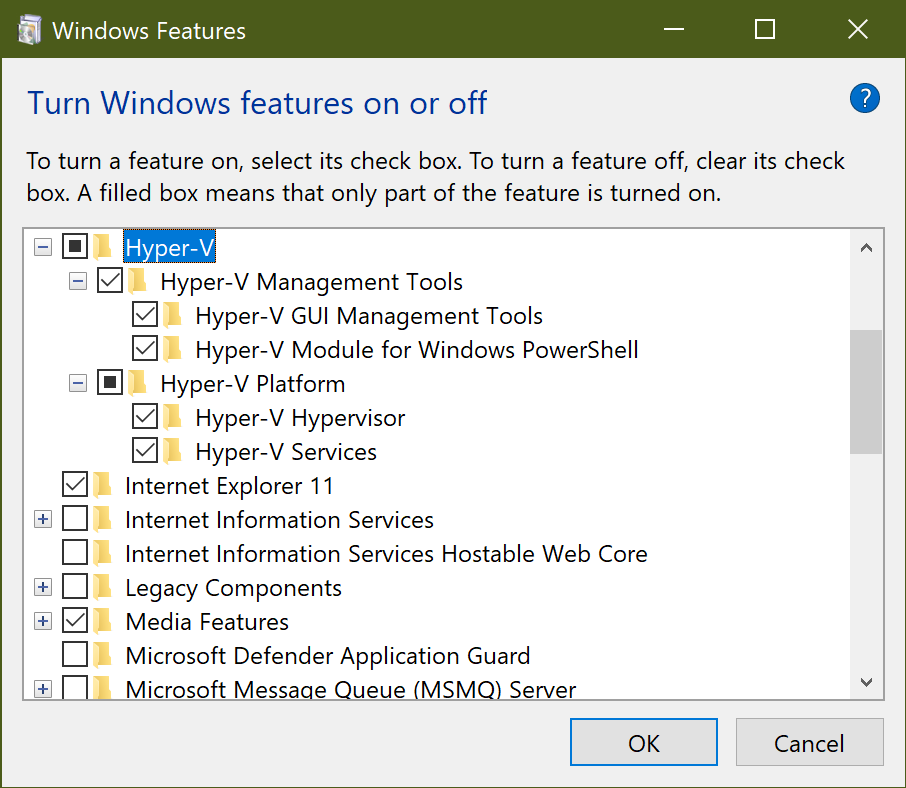
And why isn’t Hyper-V fully checked, if all the children are? Who knows, who cares, just Microsoft things. Once it finishes doing its things, reboot.
Here’s the PowerShell snippet that will fix our networking after reboots (some useful notes from p0w3rsh3ll, thanks!):
function Write-ColorOutput($ForegroundColor)
{
	# Save the current color
	$CurrentFgColor = $host.UI.RawUI.ForegroundColor

	# Set the new color
	$host.UI.RawUI.ForegroundColor = $ForegroundColor

	# Output
	if ($args)
	{
		Write-Output $args
	}
	else
	{
		$input | Write-Output
	}

	# Restore the original color
	$host.UI.RawUI.ForegroundColor = $CurrentFgColor
}

$SeparatorLine = "------------------------------------------------------------------------------------------------------------------------"

# Get the interface that's up and medium is 802.3 Ethernet and has an actual connector (=not VirtualBox or other virtual interface)
Write-Host -NoNewline "Finding Ethernet adapter nickname... "
$EthNicName = (Get-NetAdapter | ?{ $_.Status -eq "Up" -and $_.NdisPhysicalMedium -eq 14 -and $_.ConnectorPresent -eq $true }).Name
if ($?) { Write-ColorOutput "green" $EthNicName } else { Write-ColorOutput "red" "fail" }

# The switch disappears after reboot, but the binding remains, delete it
Write-Host -NoNewline "Removing network binding leftovers... "
Disable-NetAdapterBinding -Name $EthNicName -IncludeHidden
if ($?) { Write-ColorOutput "green" "success" } else { Write-ColorOutput "red" "fail" }

# Start WSL to create the WSL virtual switch, then exit to return control
Write-Host -NoNewline "Starting WSL to generate the virtual switch... "
wsl --distribution Ubuntu exit
if ($?) { Write-ColorOutput "green" "success" } else { Write-ColorOutput "red" "fail" }

# Set up the new bridged virtual network
Write-Host -NoNewline "Changing WSL virtual switch to external... "
Set-VMSwitch -Name WSL -NetAdapterName $EthNicName -AllowManagementOS $true
if ($?) { Write-ColorOutput "green" "success" } else { Write-ColorOutput "red" "fail" }

# Let things settle
Write-Host -NoNewline "Sleeping "
for($i=5; $i -gt 1; $i--)
{
	Write-Host -NoNewline "$i... "
	Start-Sleep -Seconds 1
}
Write-Host "$i."

# Host network test
Write-Host -NoNewline "Testing host IPv6 connectivity... "
Test-Connection "google.com" -IPv6 -Quiet | Out-Null
if ($?) { Write-ColorOutput "green" "success" } else { Write-ColorOutput "red" "fail" }

# Guest network test
Write-Host "Testing WSL IPv6 connectivity..."
Write-ColorOutput "blue" $SeparatorLine
wsl --distribution Ubuntu ping -6 -c 4 google.com
Write-ColorOutput "blue" $SeparatorLine

Read-Host -Prompt "WSL setup completed, press Enter to close this window..." | Out-NullSave this wherever you like, but don’t run it yet. I used the path %HOMEPATH%\app\wsl-bridge.ps1, but you may want to support multiple users. In that case, use something like %PUBLIC%\wsl-bridge.ps1 so that everyone can actually access this script. If you want this to run automatically after login (and why wouldn’t you), open Task Scheduler, go to Task Scheduler Library, and Create Task…:
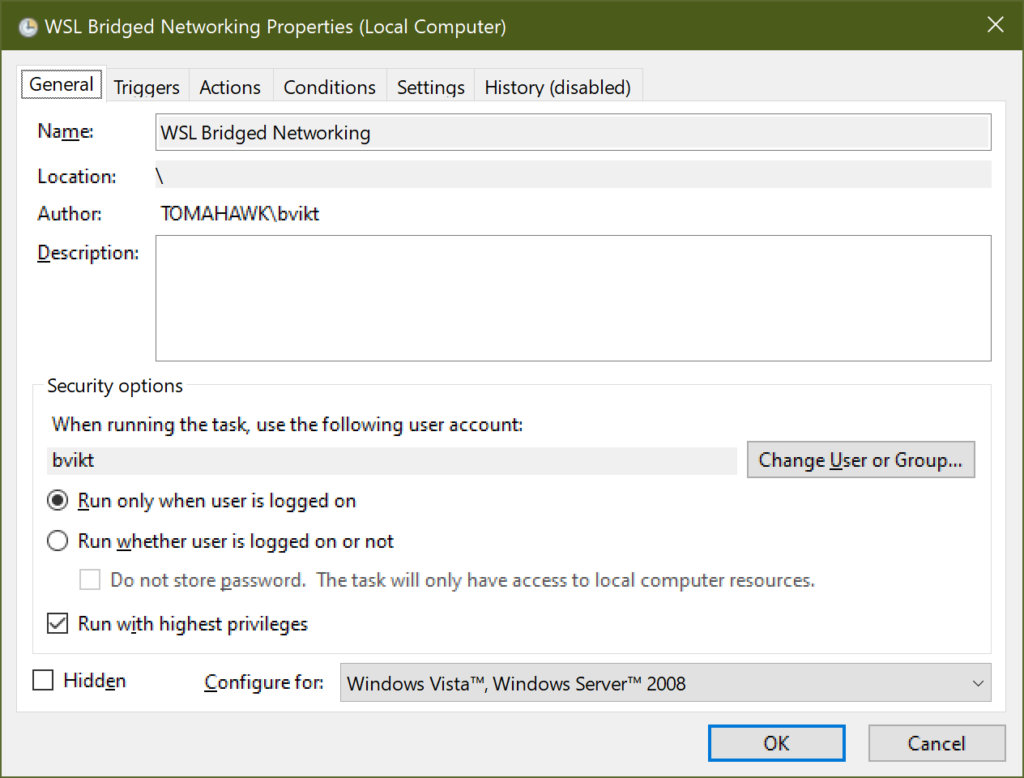
- Under General, name it whatever, e.g. WSL Bridged Networking.
- Ensure it runs under your account, not admin. Your account is the default, but some clever folks like to always run as admin and break everything, because they got stuck in the Windows XP era I guess.
- But check Run with highest privileges. This way the script runs under your account, but with elevated privileges. As it should.
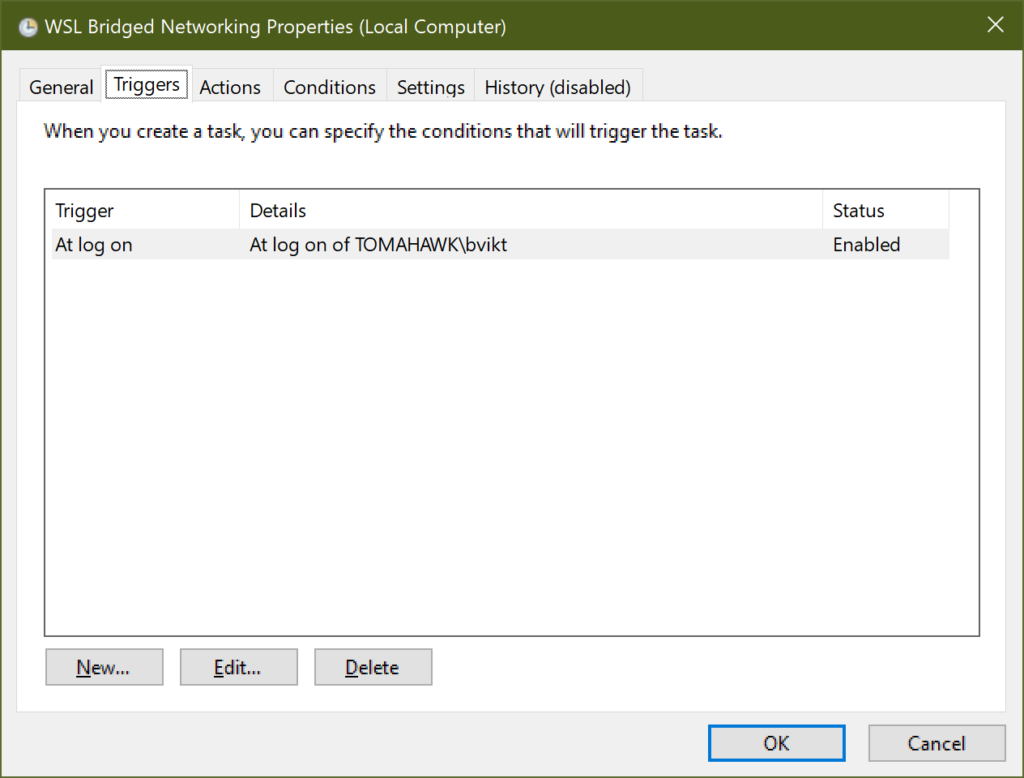
- Under Triggers, create a new trigger to run At log on.
- You likely want to restrict this to your account. Come to think of it, other users won’t have networking until
Disable-NetAdapterBindingis run, so yeah, I leave it up to the reader to sort out. If you don’t restrict it to your account though, definitely place it under%PUBLIC%, not%HOME%.
- Under Actions, add a new action to Start a program. Program/script:
"C:\Program Files\PowerShell\7\pwsh.exe"- Add arguments (or wherever you saved it):
"C:\Users\Public\wsl-bridge.ps1"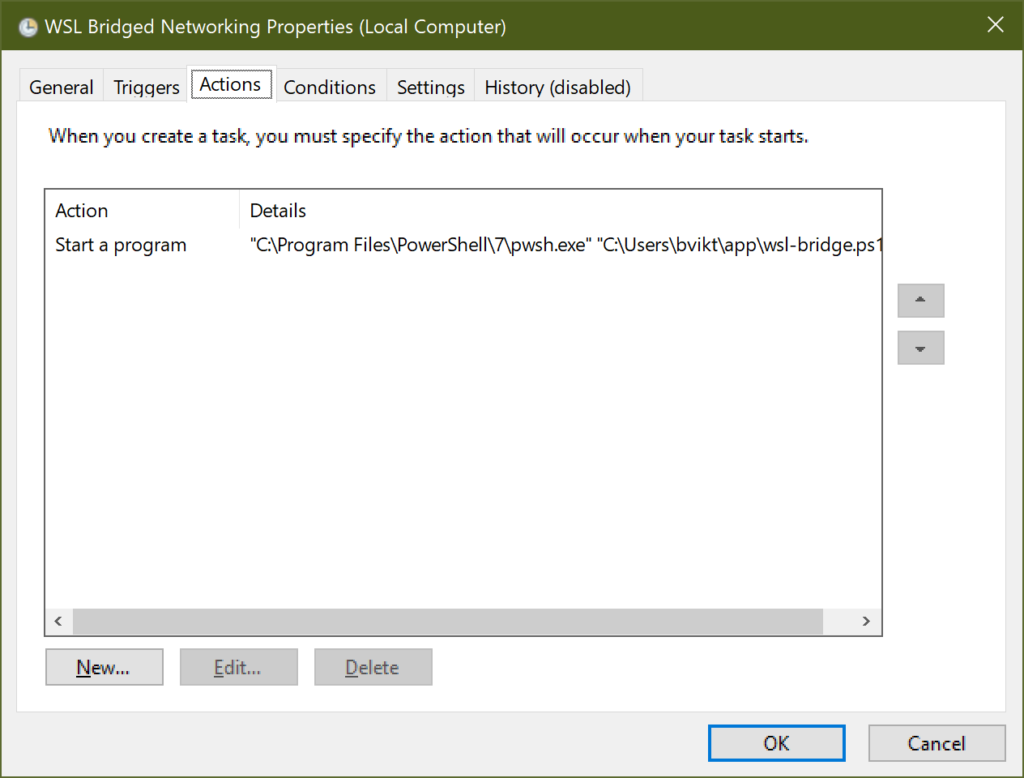
That should do. Now ensure you do have Ubuntu installed, and it is actually named Ubuntu. Check with
wsl --listNow you should be good to run the script either by simply rebooting, or doing a manual run in Task Scheduler, or just straight away starting it from admin PowerShell. But:
CAUTION:
- You’ll probably need a 2nd run after the very first one you ever do on the system for networking to come back up on the host. No, I don’t know why.
- This will disrupt your internet, so finish any connection-sensitive thing you’re doing.
Linux Networking
How WSL actually sets up networking in the distros is a mystery, so don’t break a sweat trying to figure out. I did, it lead to nowhere. The point is, it somehow acts as a proxy, and somehow forces that down onto the Linux guest. After setting up the Hyper-V part, it may or may not work for you.
If your Linux already works both via IPv4 and IPv6, you can skip the rest, congratulations. If it doesn’t, proceed. The first time I did it, I needed all these, but when I did a reinstall of Ubuntu in WSL, it worked OOTB, so cool I guess.
The problem is that now the host networking is changed to bridge your guest’s adapter, but the guest still tries to use the old, NAT’ed way. It seems that the 24.04 (non-WSL) default systemd-networkd doesn’t really work in this scenario. It should be disabled by default, but let’s make sure:
systemctl disable systemd-networkdWe need to switch to something more dumb, like dhcpcd, so open /etc/wsl.conf and tell it to run this DHCP client manually upon boot, and also stop messing up our DNS:
[boot]
systemd=true
command=dhcpcd

[network]
generateResolvConf = false
Now open /etc/systemd/resolved.conf and point it to the Cloudflare and Quad9 DNS servers, both IPv4 and IPv6 (feel free to replace them with your preferred servers):
[Resolve]
DNS=1.1.1.1 2606:4700:4700::1001 9.9.9.9 2620:fe::fe
Now you’re done with the Linux part, too. Kill WSL:
wsl --shutdownThen reopen Linux, and check for network connectivity. It should work just fine.
Reboot
Once everything is set up properly, give your computer a reboot. After the login, everything should be fine and dandy:

GG WP. Thanks again, zenczykowski, you’re a star.
Notes
- Since you should upgrade to Windows 11, I’m fairly certain it’s only a matter of time before Microsoft closes this loophole. And me publishing this article probably won’t help either. Oh well.
- Ensure there’s no
networkingModeentry in your.wslconfig. If there is, this will not work, period. - As mentioned earlier, using this setup you’ll end up with network binding remnants after each reboot. This means that after startup, your network will be dead until the PowerShell script does the dirty work. That’s just the way it is. Unfortunately I’m not aware of a trigger that runs upon shutdown, so it’s something you need to live with.
- I’ve tried to use
netplan, but it needed like a 10 second sleep and a manualnetplan applyafter each boot to function properly, whiledpcpcdjust works. If you want to try it out, be my guest:
network:
  version: 2
  renderer: networkd
  ethernets:
    eth0:
      dhcp4: true
dhcp6: trueNew-VMSwitchwon’t let you specify external anymore, it errors out with:
New-VMSwitch: Cannot validate argument on parameter 'SwitchType'. The argument "External" does not belong to the set "Internal,Private" specified by the ValidateSet attribute. Supply an argument that is in the set and then try the command again.- Apparently now you create an external vSwitch by omitting
SwitchTypeand specifyingNetAdapterName, that implies it is external.
- It is sad that the PowerShell script needs to run as admin. You can avoid admin for the Hyper-V cmdlets by adding yourself to Hyper-V Administrators, but that won’t help with
Disable-NetAdapterBinding. I’ve tried adding myself to the Network Configuration Operators group, but it didn’t help either. - Initial networking is finicky, but it’s even more finicky on IPv4. No biggie though, a few seconds and it sorts itself out:
noobient@tomahawk:~$ ping -4 google.com
PING google.com (142.251.39.14) 56(84) bytes of data.
From tomahawk (169.254.208.85) icmp_seq=1 Destination Host Unreachable
From tomahawk (169.254.208.85) icmp_seq=2 Destination Host Unreachable
From tomahawk (169.254.208.85) icmp_seq=3 Destination Host Unreachable
64 bytes from bud02s37-in-f14.1e100.net (142.251.39.14): icmp_seq=5 ttl=118 time=2.74 ms
64 bytes from bud02s37-in-f14.1e100.net (142.251.39.14): icmp_seq=6 ttl=118 time=1.98 ms
64 bytes from bud02s37-in-f14.1e100.net (142.251.39.14): icmp_seq=7 ttl=118 time=1.95 ms
From tomahawk (169.254.208.85) icmp_seq=4 Destination Host Unreachable
64 bytes from bud02s37-in-f14.1e100.net (142.251.39.14): icmp_seq=8 ttl=118 time=1.95 ms
64 bytes from bud02s37-in-f14.1e100.net (142.251.39.14): icmp_seq=9 ttl=118 time=2.13 ms
64 bytes from bud02s37-in-f14.1e100.net (142.251.39.14): icmp_seq=10 ttl=118 time=1.89 ms
64 bytes from bud02s37-in-f14.1e100.net (142.251.39.14): icmp_seq=11 ttl=118 time=1.93 ms
64 bytes from bud02s37-in-f14.1e100.net (142.251.39.14): icmp_seq=12 ttl=118 time=1.95 ms
64 bytes from bud02s37-in-f14.1e100.net (142.251.39.14): icmp_seq=13 ttl=118 time=2.00 ms
64 bytes from bud02s37-in-f14.1e100.net (142.251.39.14): icmp_seq=14 ttl=118 time=1.86 ms
64 bytes from bud02s37-in-f14.1e100.net (142.251.39.14): icmp_seq=15 ttl=118 time=1.91 ms
64 bytes from bud02s37-in-f14.1e100.net (142.251.39.14): icmp_seq=16 ttl=118 time=1.94 ms
Some useful snippets:
# Get all vSwitches
Get-VMSwitch

# Remove all vSwitches named WSL
Get-VMSwitch -Name WSL | Remove-VMSwitch -Force

# Find all adapters with a binding
Get-NetAdapterBinding -ComponentID "vms_pp"

# Find the physical Ethernet network adapter
$EthNicName = (Get-NetAdapter | ?{ $_.Status -eq "Up" -and $_.NdisPhysicalMedium -eq 14 -and $_.ConnectorPresent -eq $true }).Name

# Create a new vSwitch manually
New-VMSwitch -Name "WSL" -AllowManagementOS $true -NetAdapterName $EthNicName